Email Templates
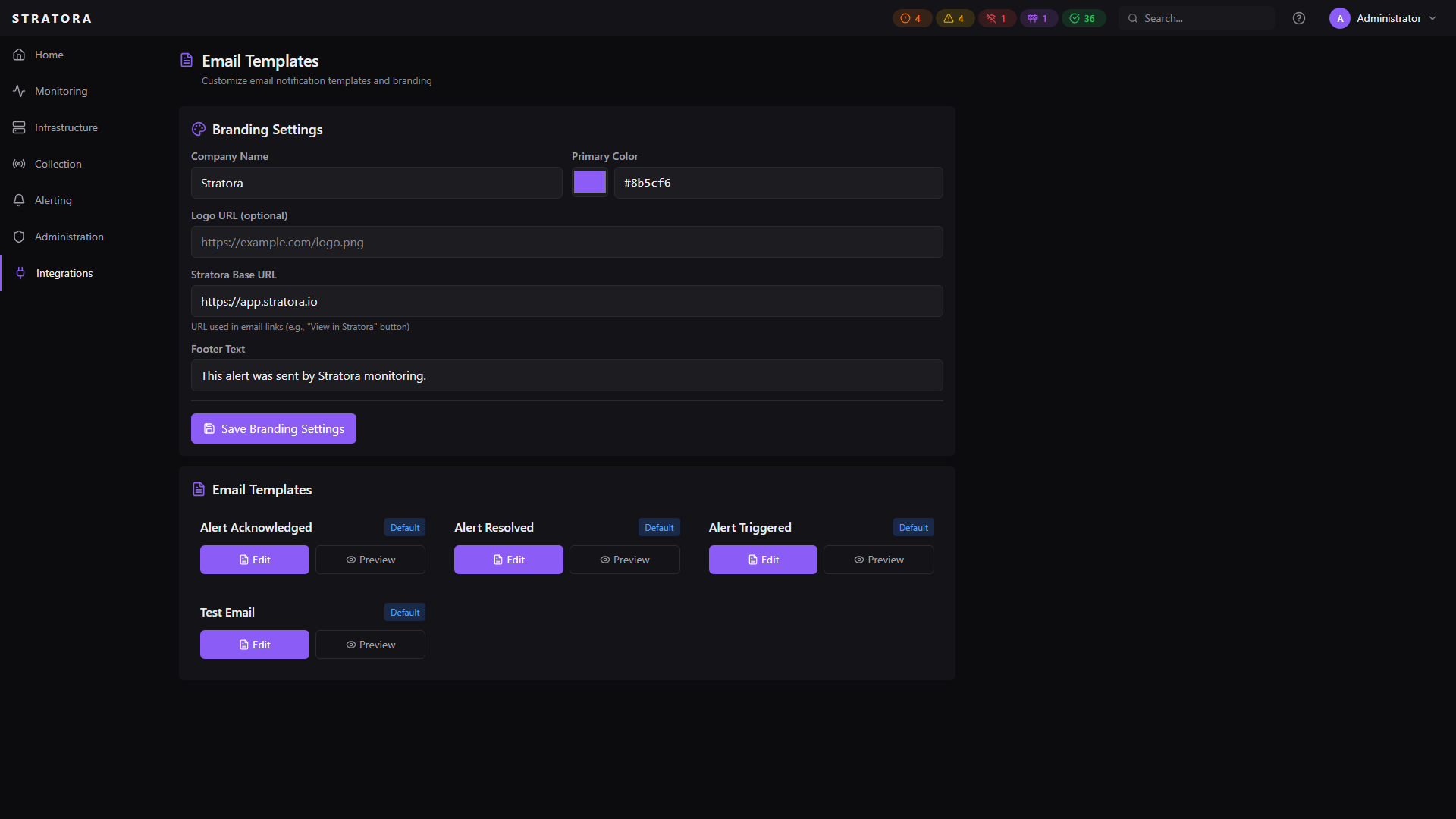
Email templates control the content and appearance of alert notification emails sent by Stratora. Every alert email — triggered, resolved, or test — is rendered from a customizable HTML template with support for dynamic variables, branding, and live preview.
Template Types
Stratora includes three built-in email templates:
| Template | When It's Sent |
|---|---|
| Alert Triggered | When an alert fires (threshold crossed, service stopped, node unreachable) |
| Alert Resolved | When a previously active alert clears and is resolved |
| Test Email | When you test your SMTP configuration from the settings page |
Each template has two parts:
- Subject line — rendered as plain text with variable substitution
- Body — rendered as full HTML with variable substitution and auto-escaping
Default Templates
The built-in templates use a dark-themed, table-based HTML layout designed for broad email client compatibility (Outlook, Gmail, Apple Mail, etc.).
Alert Triggered
- Subject:
[WARNING] Alert: High CPU Usage on 'SERVER-01': 95%(severity and summary are dynamic) - Body: severity-colored banner, node details card (hostname, IP, site, alert type, timestamp), a "View in Stratora" button, and a branded footer
Alert Resolved
- Subject:
[RESOLVED] High CPU Usage on 'SERVER-01': 95% - Body: green "Resolved" banner, node details with triggered time, resolved time, and alert duration, a "View Alert History" button
Test Email
- Subject:
Stratora Test Email - Body: purple banner with a "Success" badge confirming SMTP is working
Template Variables
Use Go template syntax ({{.VariableName}}) in both subject and body templates. All variables are automatically populated when the email is sent.
Alert Information
| Variable | Description | Example |
|---|---|---|
{{.AlertSummary}} | Full alert summary text | High CPU Usage on 'DC01': 96% |
{{.Severity}} | Lowercase severity | warning, critical |
{{.SeverityUpper}} | Uppercase severity | WARNING, CRITICAL |
{{.SeverityColor}} | Severity hex color | #f59e0b (warning), #ef4444 (critical) |
{{.SeverityColorDark}} | Darker severity hex color | #d97706, #dc2626 |
{{.AlertType}} | Type of alert | High CPU Usage |
{{.TriggeredAt}} | When the alert fired | Jan 15, 2026 8:45 PM EST |
{{.ResolvedAt}} | When the alert resolved | Jan 15, 2026 8:52 PM EST |
{{.Duration}} | How long the alert was active | 7m 23s |
{{.Details}} | Additional alert context | Metric details, threshold info |
Node Information
| Variable | Description | Example |
|---|---|---|
{{.NodeHostname}} | Device name | DC01 |
{{.NodeIP}} | Device IP address | 10.1.20.5 |
{{.NodeSite}} | Site name (may be empty) | Main Office |
Branding
| Variable | Description |
|---|---|
{{.CompanyName}} | Your organization name |
{{.PrimaryColor}} | Brand primary color hex |
{{.PrimaryColorDark}} | Darkened brand color hex |
{{.LogoHTML}} | Pre-rendered <img> tag with your logo |
{{.FooterText}} | Footer message text |
{{.StratoraURL}} | Base URL for "View in Stratora" links |
Conditional Rendering
Use Go template conditionals to show or hide sections based on available data:
{{if .NodeSite}}
  <tr><td>Site</td><td>{{.NodeSite}}</td></tr>
{{end}}

{{if .Details}}
  <p>{{.Details}}</p>
{{end}}
Customizing Templates
Navigate to Administration → Email Templates to edit templates.
Editing a Template
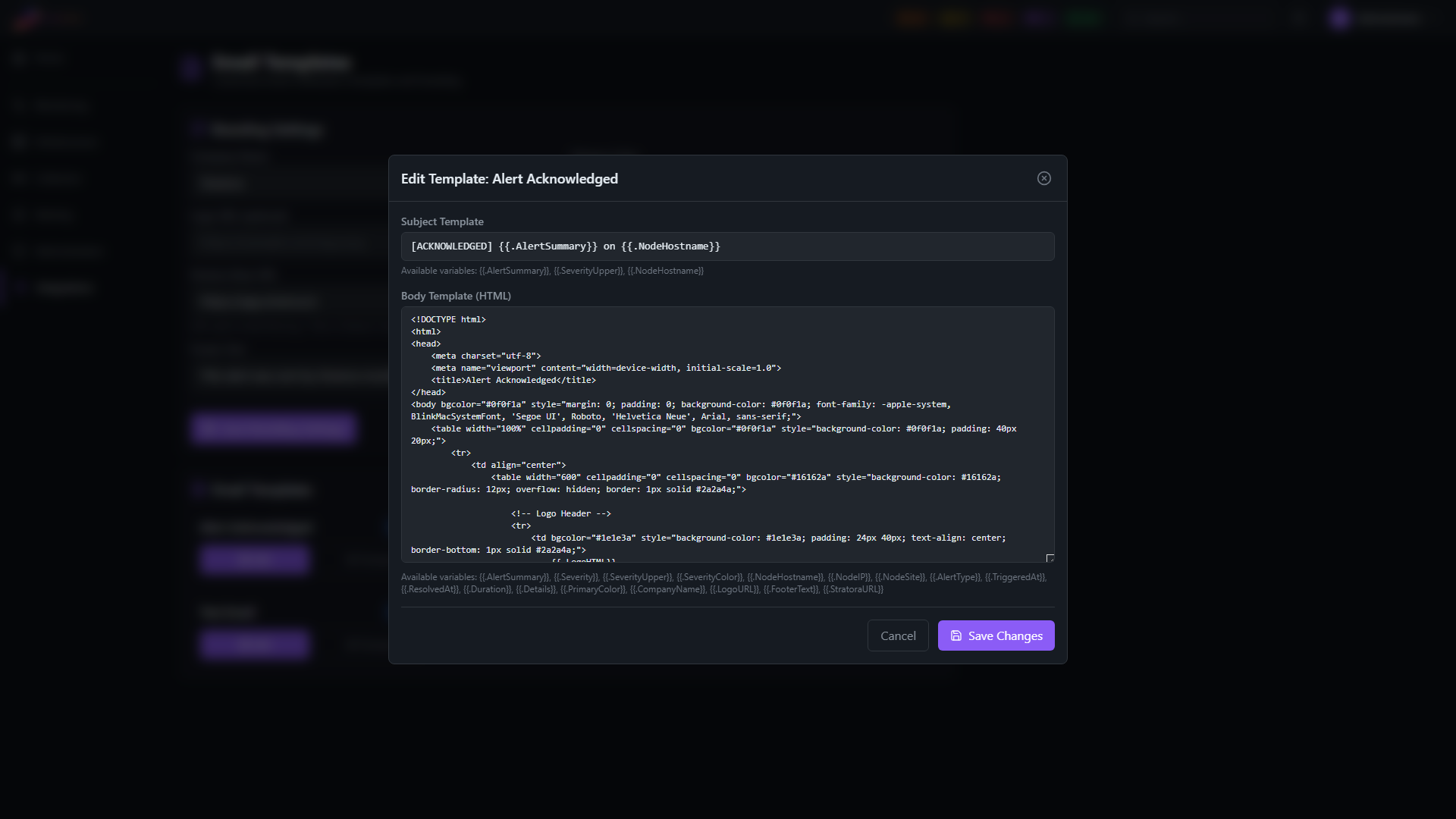
- Select the template you want to customize (Alert Triggered, Alert Resolved, or Test Email)
- Edit the subject line and/or HTML body
- Use Preview to see how the rendered email looks with sample data
- Click Save
The subject line uses plain-text rendering (no HTML escaping). The body uses HTML rendering with automatic escaping of variables to prevent injection — the only exception is {{.LogoHTML}}, which is pre-rendered as a safe <img> tag.
Resetting to Default
Click Reset to Default to restore a template to its original built-in content. This replaces both the subject and body with the factory defaults.
Branding Settings
Customize the look and feel of all email templates from the Email Branding section:
| Setting | Description |
|---|---|
| Logo | Upload a logo image (URL or base64 data URI). Falls back to the Stratora logo if not set. |
| Primary Color | Brand color used in headers and buttons. Choose from presets or enter a custom hex value. |
| Company Name | Your organization name displayed in the email header |
| Footer Text | Custom text shown at the bottom of every email |
| Stratora Base URL | The URL used for "View in Stratora" buttons (set this to your server's external URL) |
Set the Stratora Base URL to your server's public-facing address so that "View in Stratora" buttons in emails link correctly. For example: https://stratora.example.com
Preview and Testing
Preview
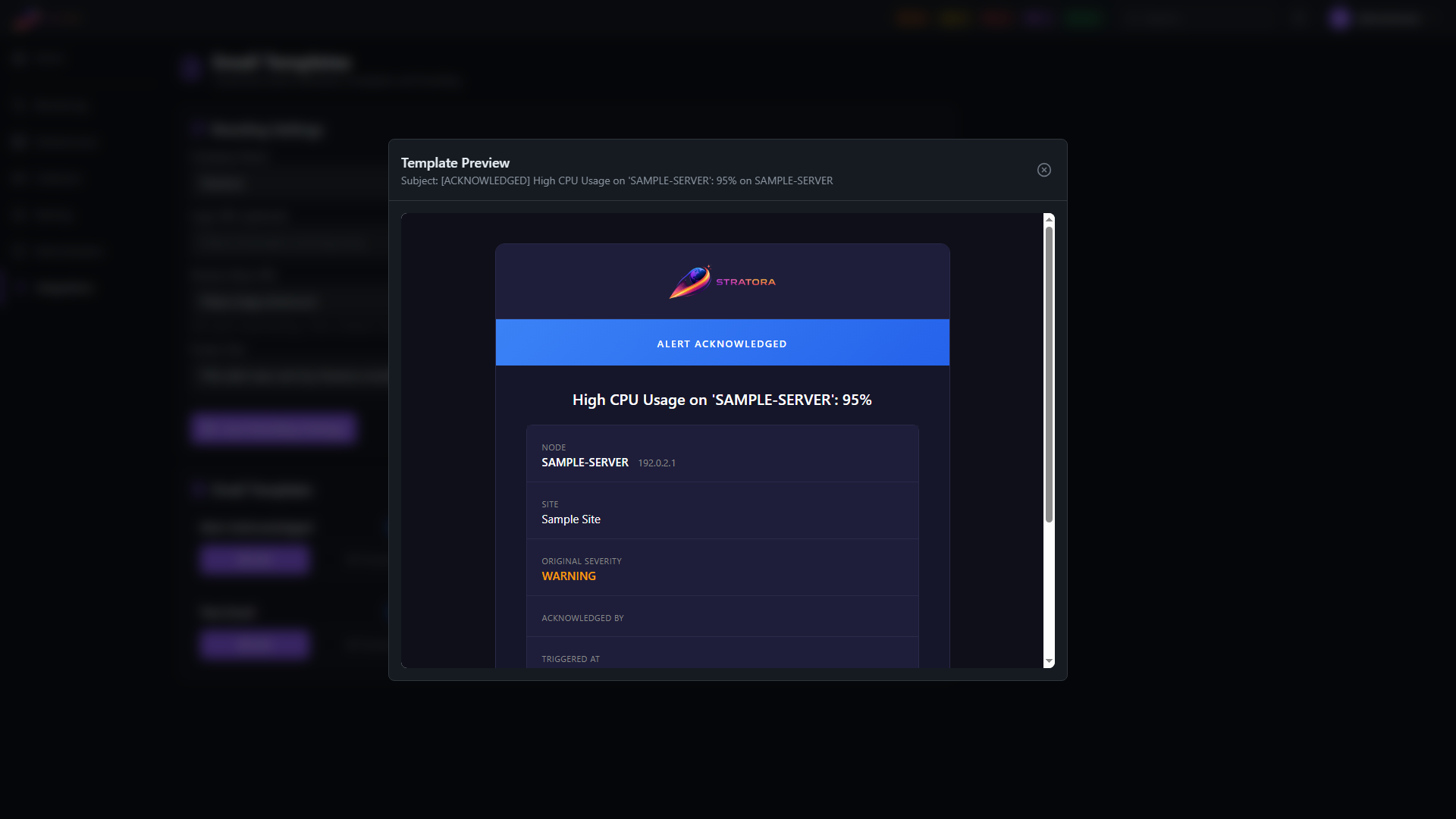
Click Preview on any template to see it rendered with sample data. The preview uses realistic placeholder values (a sample server name, IP, alert summary, and timestamps) so you can see exactly how the email will look in a recipient's inbox.
Test Email
To send an actual test email through your SMTP configuration:
- Navigate to Administration → SMTP Settings
- Enter a recipient email address
- Click Send Test Email
This sends the Test Email template through your configured SMTP server, verifying both the template rendering and email delivery.
SMTP Configuration
Email templates require a working SMTP configuration. See External Notifications for SMTP setup details.