Agents
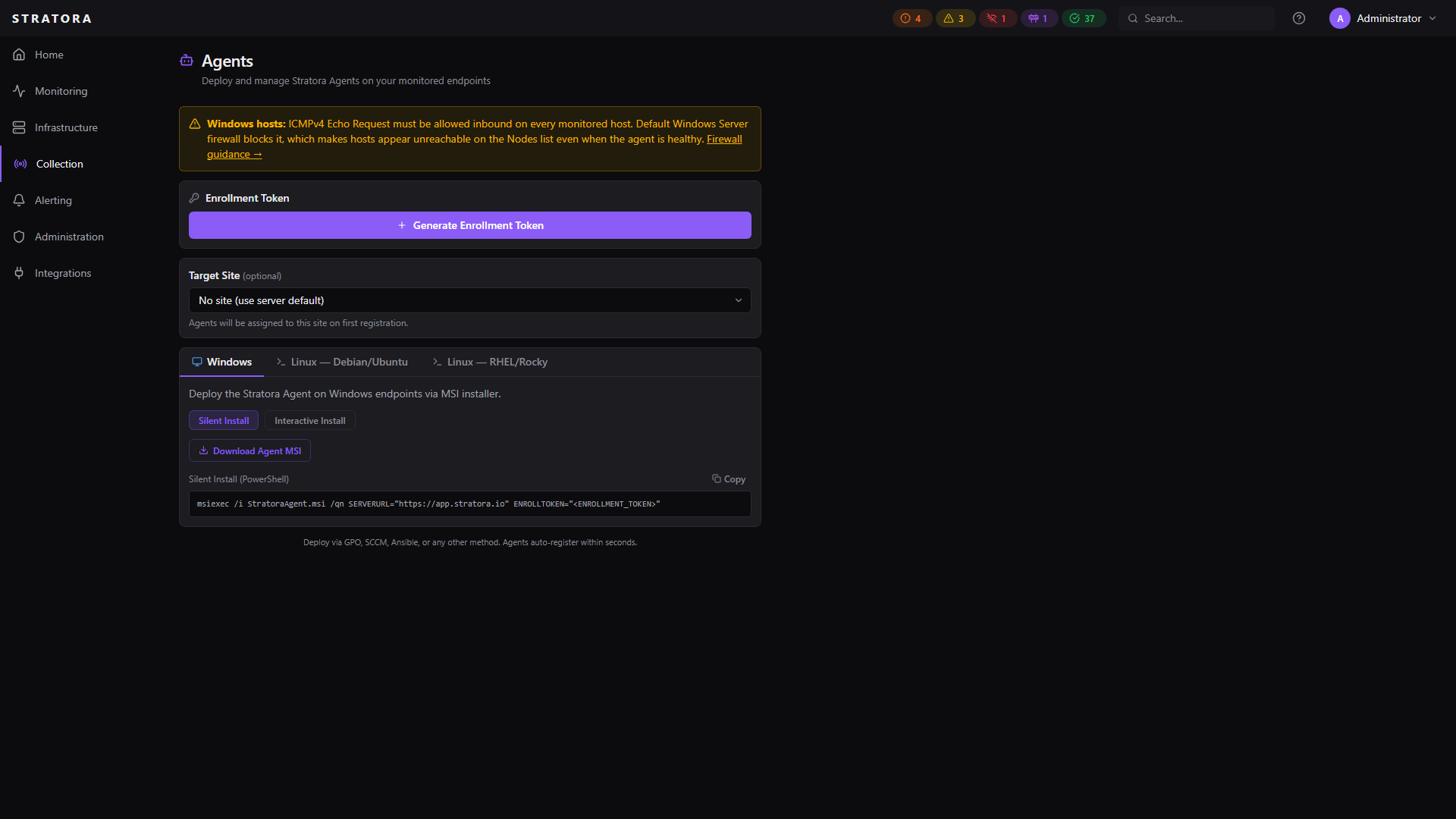
The Stratora Agent is a lightweight service installed on your monitored endpoints (Windows and Linux servers). It collects system metrics — CPU, memory, disk, network, and running services — and reports them back to the Stratora server. Agents use an embedded Telegraf instance for metric collection and communicate with the server over HTTPS.
Unlike SNMP-based monitoring (which is polled by a collector), agents push metrics from the host itself. This gives you deeper OS-level visibility and works well for servers behind firewalls or in network segments where inbound SNMP polling isn't practical.
Supported Platforms
| Platform | Installer | Tested Versions |
|---|---|---|
| Windows Server / Desktop | MSI (x64) | Windows Server 2016, 2019, 2022, 2025; Windows 10, 11 |
| Ubuntu / Debian | .deb | Ubuntu 22.04 LTS, 24.04 LTS; Debian 12 (Bookworm), Debian 13 (Trixie) |
| RHEL / Rocky / Alma | .rpm | RHEL 9.x; Rocky 8.x, 9.x; AlmaLinux 9.x |
Per-platform prerequisites — firewall rules, supported distributions, and what to enable before deploying the agent — are documented in Windows hosts and Linux hosts.
The default Windows Server firewall blocks inbound ICMP Echo Request, which makes monitored hosts appear unreachable on the Nodes list even when the agent is healthy. Enable the rule per Windows hosts → ICMP Echo Request before deploying agents to a Windows fleet. Linux hosts typically allow ICMP by default — see Linux hosts if you've hardened firewalld, ufw, or iptables.
Deploying Agents
Navigate to Collection → Agents to access the deployment page. The page provides platform-specific install commands with your server URL pre-filled.
Before You Start
You'll need an enrollment token — this is the temporary credential the agent uses to register with the server. You can select an existing token or generate a new one directly from the Agents page. See Enrollment for details on token types and security.
Optionally, select a target site to assign agents to a specific site on first registration.
Windows — Silent Install
For automated deployments (GPO, SCCM, Intune, PDQ Deploy, Ansible):
- Download the MSI from the Agents page or use the download URL:
/api/v1/downloads/agent/windows - Run the generated silent install command:
msiexec /i StratoraAgent.msi /qn SERVERURL="https://stratora.example.com" ENROLLTOKEN="enroll_xxxxx" SITE="Main Office"
| Parameter | Required | Description |
|---|---|---|
SERVERURL | Yes | Your Stratora server URL |
ENROLLTOKEN | Yes | Enrollment token from the Agents page |
SITE | No | Target site name for auto-assignment |
| Flag | Effect |
|---|---|
/qn | Fully silent (no UI) |
/qb | Basic UI (progress bar only) |
/l*v C:\temp\install.log | Verbose logging to file |
The Agents page generates this command with your values pre-filled — just copy and run.
Windows — Interactive Install
- Download the MSI from the Agents page
- Run the installer
- The setup wizard prompts for your server URL and enrollment token
Linux — Debian / Ubuntu
- Download or curl the
.debpackage:
curl -sko /tmp/stratora-agent.deb https://stratora.example.com/api/v1/downloads/agent/linux-deb
sudo dpkg -i /tmp/stratora-agent.deb
- Write the agent configuration and start the service:
sudo tee /etc/stratora/agent.json << 'EOF'
{ "server_url": "https://stratora.example.com", "enrollment_token": "enroll_xxxxx", "site_name": "Main Office" }
EOF
sudo systemctl enable --now stratora-agent
Linux — RHEL / Rocky / Alma
- Download or curl the
.rpmpackage:
curl -sko /tmp/stratora-agent.rpm https://stratora.example.com/api/v1/downloads/agent/linux-rpm
sudo rpm -i /tmp/stratora-agent.rpm
- Write the agent configuration and start the service:
sudo tee /etc/stratora/agent.json << 'EOF'
{ "server_url": "https://stratora.example.com", "enrollment_token": "enroll_xxxxx", "site_name": "Main Office" }
EOF
sudo systemctl enable --now stratora-agent
The Agents page generates these commands with your server URL and selected token pre-filled. Use the copy button to grab the exact commands for your environment.
Verifying Enrollment
After installation, the agent registers with the server within seconds. To confirm:
- Navigate to Infrastructure → Nodes — the agent's host should appear with status Healthy
- Check the node's detail page for incoming metrics (CPU, memory, disk)
If the agent doesn't appear, check:
- Network connectivity from the host to the Stratora server (HTTPS, port 443)
- That the enrollment token hasn't expired or been exhausted
- Agent service status:
sc query StratoraAgent(Windows) orsystemctl status stratora-agent(Linux)
What Gets Installed
Windows
- StratoraAgent — Windows service managing the agent lifecycle (register/heartbeat, hostname detection, role detection, Telegraf config generation)
- stratora-agent-telegraf — Windows service running the embedded Telegraf instance that collects and ships metrics
- stratora-tray.exe — system-wide tray indicator (launched at logon for every interactive user) that shows agent connection status and links to logs
- Installed to
C:\Program Files\Stratora\, with configuration and logs underC:\ProgramData\Stratora\
Linux
- stratora-agent — systemd service at
/opt/stratora/bin/stratora-agent, running as thestratorauser - Embedded Telegraf managed as a subprocess (linked to the system package's
telegrafbinary at install time if available) - Configuration at
/etc/stratora/agent.json - State at
/var/lib/stratora/ - Logs via journald:
journalctl -u stratora-agent -f
Collected Metrics
Both platforms ship metrics every 10 seconds using an embedded Telegraf instance that writes to the Stratora ingest proxy in InfluxDB line protocol (Linux) or Prometheus remote-write (Windows). The metrics list below reflects what is actually configured in the agent's bundled telegraf-agent.conf.
Windows
Collected via Windows Performance Counters (win_perf_counters) plus the cross-platform mem, disk, and system inputs:
| Category | Source | Metrics |
|---|---|---|
| CPU | Processor (_Total) | % Processor Time, % Idle Time, % User Time, % Privileged Time, % Interrupt Time |
| Memory | Memory + inputs.mem | Available Bytes, Committed Bytes, Cache Bytes, Pool paged/non-paged, Pages/sec, Page Faults/sec, plus mem_total / mem_used_percent |
| Disk (logical) | LogicalDisk (all) | % Free Space, Free Megabytes, % Disk Time, Read/Write Bytes/sec, Reads/Writes per sec |
| Network | Network Interface (all) | Bytes Sent/Received per sec, Packets Sent/Received per sec, inbound/outbound errors |
| System | System + inputs.system | Context Switches/sec, System Calls/sec, Processor Queue Length, System Up Time |
| Services | inputs.win_services | State of all installed Windows services |
Role-aware counters are collected automatically when the matching role is installed on the host (missing counter objects are silently skipped by Telegraf):
- Active Directory Domain Services (NTDS) — LDAP throughput and bind rates, DRA replication traffic, DS directory reads/writes, authentication bind rates
- DNS Server — query rates by protocol, recursive query metrics, dynamic update activity, zone transfer events, caching memory
- DHCP Server — packet and message-type rates (Discovers/Offers/Requests/Acks/Nacks), queue lengths, avg ms per packet
- SQL Server (MSSQLSERVER) — General Statistics, SQL Statistics, Buffer Manager, Memory Manager, Locks, Databases, Wait Statistics
- IIS (W3SVC) — Web Service connection and request rates, Web Service Cache hits/misses, App Pool WAS state, W3SVC_W3WP worker metrics
- Hyper-V (vmms) — Hypervisor logical processors, VM health summary, dynamic memory pressure, virtual storage I/O, virtual network throughput
Linux
Collected via the standard cross-platform Telegraf inputs:
| Input | Metrics |
|---|---|
inputs.cpu | Per-core and total CPU utilization (percpu = true, totalcpu = true) |
inputs.mem | Total, used, available, buffers, cached memory |
inputs.swap | Swap total / used / free |
inputs.disk | Per-mount usage %, total/used/free, inodes (tmpfs / devtmpfs / overlay filesystems ignored) |
inputs.diskio | Per-device IOPS, read/write bytes, io_time |
inputs.net | Per-interface bytes/packets in/out, errors, drops |
inputs.system | Hostname, uptime, 1/5/15-minute load averages, logged-in users |
inputs.processes | Total processes by state (running, sleeping, zombie, etc.) |
inputs.kernel | Context switches, interrupts, forks |
inputs.linux_sysctl_fs | file-nr, inode-nr from /proc/sys/fs |
inputs.systemd_units | Active / inactive / failed state of all systemd service units |
All metrics are tagged with node_id, hostname, vendor, os, and site so they join cleanly to the same panels used by collector-based nodes.
Network Requirements
The agent is strictly push-only — it establishes outbound connections to the Stratora server and never listens for inbound traffic.
| Direction | Protocol | Port | Purpose |
|---|---|---|---|
| Agent → Stratora server | HTTPS | 443 | Enrollment, heartbeat, config pull, metric ingest |
| Inbound to agent host | — | — | None required. The agent does not listen on any port. |
DNS: The agent must be able to resolve the Stratora server FQDN configured in server_url. If DNS is unavailable, use a literal IP address.
TLS: HTTPS is mandatory.
- Linux: if the Stratora server uses a self-signed certificate, set
"insecure_skip_verify": truein/etc/stratora/agent.jsonto suppress verification. Default is verify-on. - Windows: the Windows agent currently does not verify the server's TLS certificate regardless of validity. Production deployments should still use a valid certificate, because Linux agents and the browser-side UI do enforce verification.
Production deployments should use a valid certificate instead of relying on the Windows agent's skip behavior.
HTTP/HTTPS proxy: The current agent HTTP client is configured with an explicit http.Transport that does not honor HTTP_PROXY / HTTPS_PROXY environment variables. Deploying behind a forward proxy is not supported in this release — the agent host must have direct outbound HTTPS reachability to the Stratora server.
Updating the Agent
Agents upgrade in-place. Configuration, the enrolled component ID, and the component API key are preserved across upgrades, so an upgraded agent does not re-enroll and keeps its existing node record.
Windows
Run the new StratoraAgent-X.Y.Z.msi installer (interactively or silently) — WiX's MajorUpgrade schedule removes the older product after the new one is installed. The stratora-agent-telegraf service is stopped and restarted as part of the upgrade; there is a brief metric gap (typically <30 seconds) while the new Telegraf binary takes over.
msiexec /i StratoraAgent-X.Y.Z.msi /qn
The config file under C:\Program Files\Stratora\ is explicitly preserved — the installer does not declare RemoveFile entries on the config component, specifically to prevent MajorUpgrade from deleting enrolled credentials.
Linux
Install the new package directly over the old one:
# Debian / Ubuntu
sudo dpkg -i stratora-agent_X.Y.Z_amd64.deb
sudo systemctl restart stratora-agent

# RHEL / Rocky / Alma
sudo rpm -U stratora-agent-X.Y.Z-1.x86_64.rpm
sudo systemctl restart stratora-agent
The postinst scripts reload systemd and keep /etc/stratora/agent.json in place. The embedded Telegraf subprocess is restarted by the agent on its next startup cycle.
After upgrade
Verify the new version on the node detail page — the agent reports its version and build time on every heartbeat, so the updated value appears within ~10 seconds.
Agent vs. Collector
| Agent | Collector | |
|---|---|---|
| Installed on | Each monitored endpoint | One per remote site/network segment |
| Collects from | The local host only | All assigned nodes via SNMP/ICMP |
| Direction | Push (agent → server) | Pull (collector polls devices) |
| Use case | Windows/Linux servers | Network switches, routers, firewalls, NAS, UPS |
| Metrics | OS-level (CPU, memory, disk, services) | Protocol-dependent (SNMP OIDs, ping, HTTP) |
Most environments use both: agents on servers, collectors for network infrastructure.
Hostname Resolution
The Stratora Linux agent reports the fully qualified domain name (FQDN) of the host when possible, rather than the short hostname.
On each heartbeat, the agent:
- Reads the OS hostname via
gethostname(2) - Performs a forward DNS lookup to resolve the hostname to an IP address (preferring IPv4)
- Performs a reverse DNS lookup on that IP to retrieve the FQDN
- Reports the FQDN if one is found; falls back to the short hostname if DNS is not configured or no PTR record exists
For FQDN reporting to work, your DNS server must have:
- An A record mapping the hostname to its IP address
- A PTR record mapping the IP address back to the FQDN
Nodes without PTR records will continue to report their short hostname until a PTR record is added. The hostname updates automatically on the next heartbeat — no agent restart or redeployment required.
Hostname and Display Name
For agent-monitored nodes, the hostname and display name are set by the agent and reflect the server's actual identity. These fields are read-only in the Stratora UI.
To change how a node appears, update the hostname on the server itself (hostnamectl set-hostname) or update the PTR record in DNS. Stratora will reflect the change within 10 seconds (one heartbeat cycle).
Server Renames and Agent Re-enrollment
When a monitored server is renamed, the Stratora agent continues reporting under the original node record using its stored node ID. Routine hostname changes are reflected automatically via the agent's heartbeat — no action is required in this case.
Re-enrollment on the same hostname is also clean: the existing node and component records are updated in place and a new API key is issued (see Enrollment → Re-Enrollment). You can reimage a server and reinstall the agent with the same enrollment token without creating a duplicate.
The only scenario that produces a duplicate node entry is when the agent configuration is wiped and the host's hostname has changed between the original enrollment and the re-enrollment (for example, an OS reinstall on a renamed server). In that case, Stratora has no way to correlate the new hostname with the old node, so it creates a fresh node under the new hostname.
To resolve this:
- Uninstall the Stratora agent from the server
- In Stratora, navigate to Infrastructure → Nodes and delete the old node entry
- Redeploy the agent — it will register cleanly under the new hostname
This limitation applies only when the agent is fully reinstalled on a server whose hostname has changed since the original enrollment. Normal hostname changes on a running agent are handled automatically.