Home Dashboard
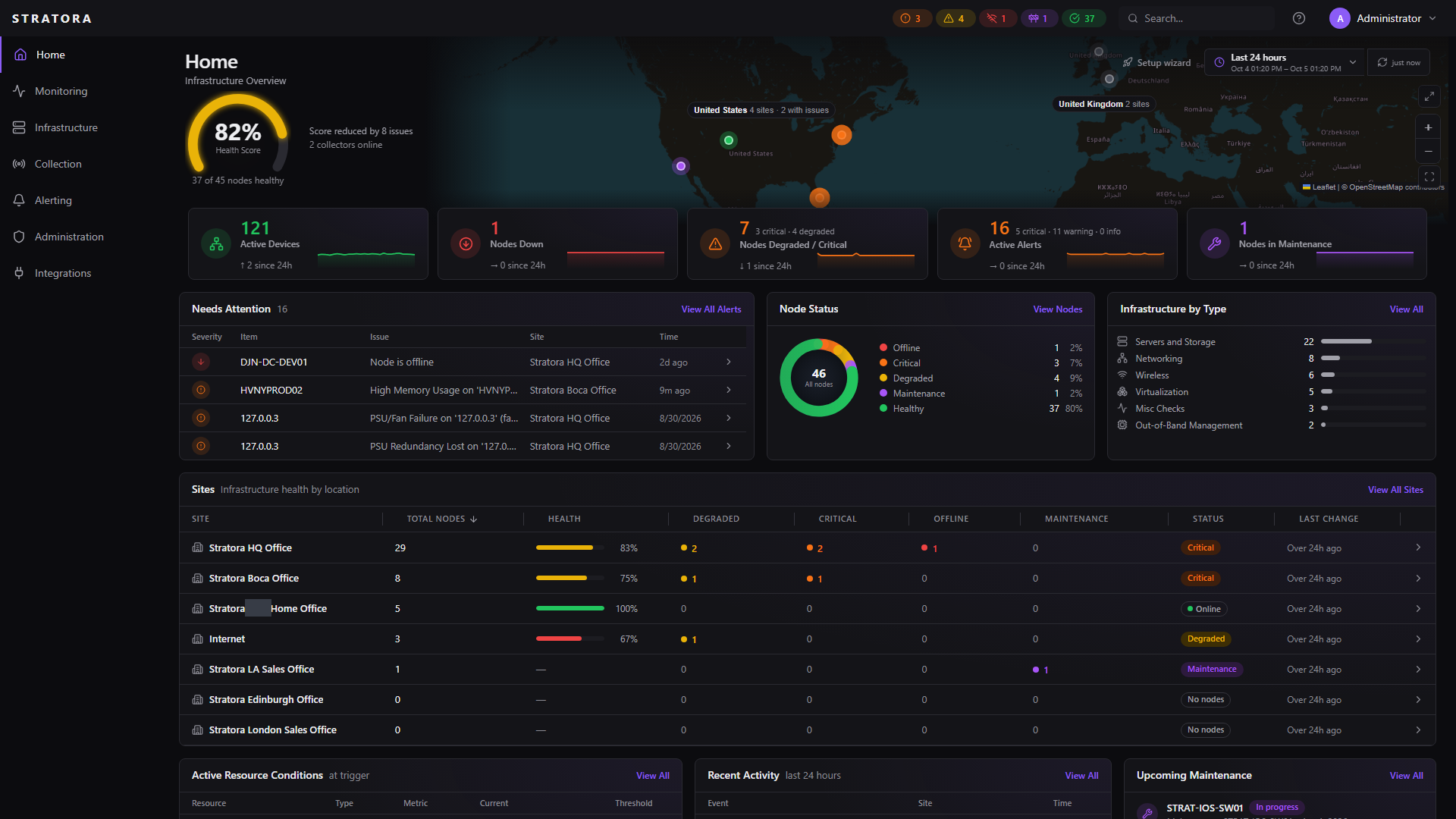
The Home page is Stratora's daily-driver overview — the first surface you see after login and the screen most operators leave open during their shift. It triages what needs attention across every site, gives you the platform's overall health at a glance, and routes you into deeper views when something needs investigating.
What's on the page
Status counters (top bar)
The status counters in the top bar — visible on every page in Stratora, not just Home — show how many monitored nodes are currently Critical, Degraded, Offline, Maintenance, and Healthy. They update on the same cadence as the rest of the page (~10 seconds). Click any counter to open the Nodes list filtered to that status.
Health Score and the world map (hero)
The hero combines the platform's Health Score gauge — the overall health percentage, with a one-line summary beneath it (for example, "37 of 45 nodes healthy," "Score reduced by 8 issues," and a link to how many collectors are online) — with a world map of your sites. Each site is plotted at its location and colored by its worst current status; zoom, pan, Fit to sites, and Full screen controls are on the map. See Health score methodology below for how the percentage is calculated. A time-range picker and a manual refresh control sit at the top right, and a Setup wizard shortcut appears until setup is complete.
Infrastructure KPIs
A row of KPI cards summarizes the deployment, each with a 24-hour sparkline and a since-24h delta, and each clickable into the matching filtered view:
- Active Devices — devices seen in the last 24 hours.
- Nodes Down — nodes currently offline.
- Nodes Degraded / Critical — with the critical-vs-degraded split.
- Active Alerts — with the critical / warning / info split.
- Nodes in Maintenance — nodes in an active maintenance window.

Needs Attention
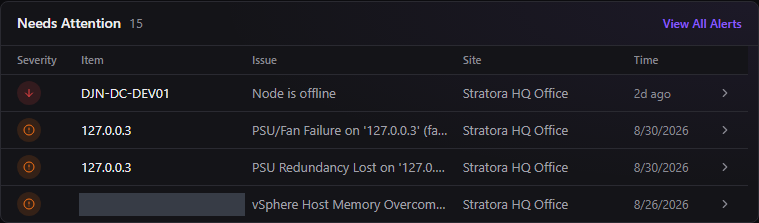
The Needs Attention card lists the active alerts that most warrant a look — severity, the affected item, the issue, its site, and how long ago it fired — with a View All Alerts link into the full Alerts page. When Stratora detects actionable items (pending agents awaiting approval, unbound IPAM subnets, an expiring credential, a finished discovery job with importable devices), a Recommended actions list appears beneath the alerts with direct links to the relevant page.
Node Status
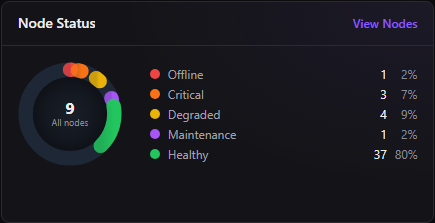
The Node Status card shows a donut of all nodes broken down by health state — Healthy, Degraded, Critical, Offline, and Maintenance — with a legend giving the count and percentage for each. View Nodes opens the full Nodes list.
Infrastructure by Type
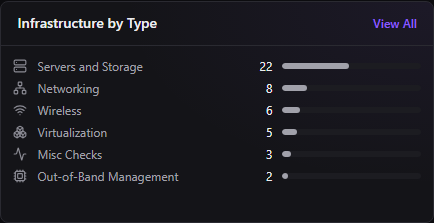
The Infrastructure by Type card counts nodes by category — Servers and Storage, Networking, Wireless, Virtualization, Misc Checks, Out-of-Band Management — with a proportional bar for each, so you can see the shape of what you're monitoring at a glance.
Sites
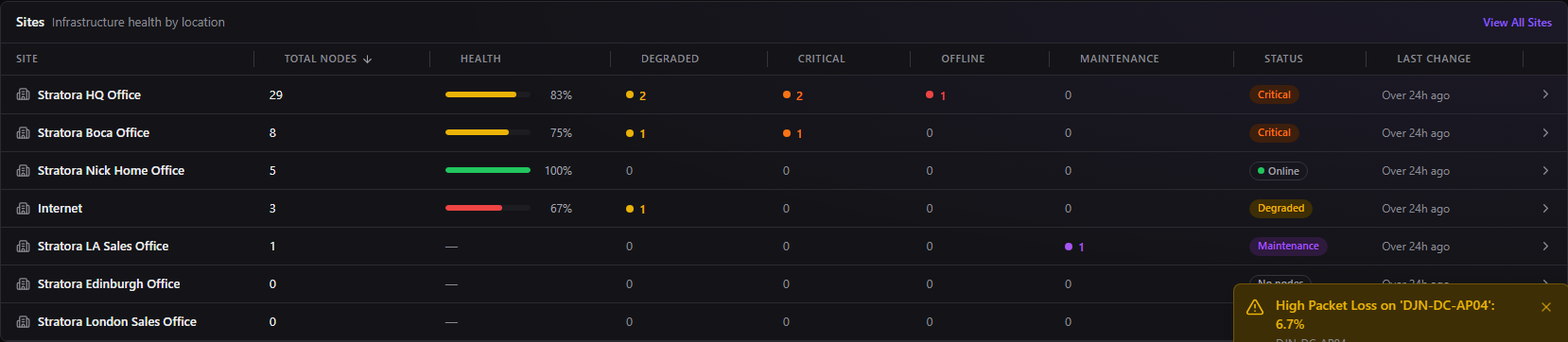
The Sites card rolls infrastructure health up by location: total nodes, a health bar, per-status counts (Degraded, Critical, Offline, Maintenance), an overall status, and when the site last changed. Click any site row to open its per-site dashboard; View All Sites opens the Sites page. Sites with no nodes read "No nodes."
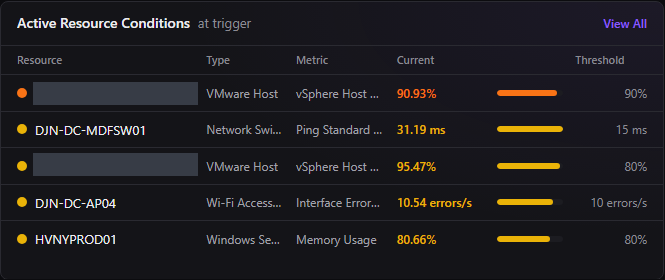
Active Resource Conditions
The Active Resource Conditions card surfaces the resources currently at trigger — the node, its type, the metric, the current value, and the threshold it has crossed — each linking to the underlying alert. This often surfaces resource-saturation incidents faster than scanning the alert list.
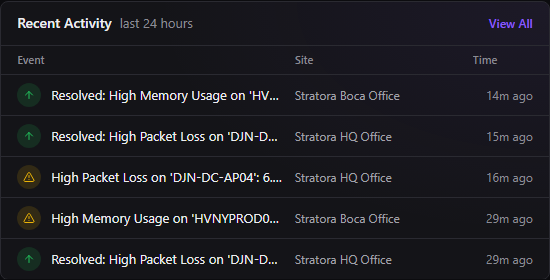
Recent Activity
The Recent Activity card is a running feed of the last 24 hours of alert activity — fires and resolutions — each with its site and time, linking to the alert. It's your at-a-glance record of what's been happening without leaving Home.
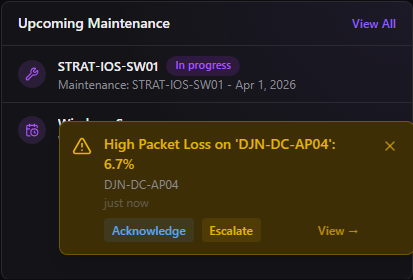
Upcoming Maintenance
The Upcoming Maintenance card lists maintenance windows that are in progress or scheduled, so planned work doesn't get mistaken for an incident. View All opens the Maintenance page.
Health score methodology
The percentage shown in the Health Score gauge is a weighted aggregation across all monitored nodes:
- Each node contributes a score based on its current health status: Healthy = 100%, Degraded = partial credit, Critical / Offline = 0%, Discovering = neutral (excluded from the average), Maintenance = neutral.
- Sites are weighted by their node count — a 50-node site contributes more weight than a 5-node site.
- The result is a single percentage that tracks the deployment's overall health day over day.
The score is a directional indicator, not a precise SLA metric. Use it to spot trend changes; use the per-node and per-site dashboards for incident-level detail.
Common workflows from the Home page
Start your shift here. The Health Score and the KPI cards tell you whether anything broke overnight; Needs Attention tells you what to look at first; Sites tells you which locations carry the current weight.
Triage during an incident. When the Critical counter or the Nodes Degraded / Critical card ticks up, click through to the affected nodes. Active Resource Conditions often surfaces resource-saturation incidents the moment a metric crosses its threshold.
Wind down your shift. Recent Activity gives you a quick read of what fired and resolved today — useful for handoffs and post-incident reconstruction — and Upcoming Maintenance shows what's planned next.
Refresh cadence
The Home page refreshes automatically every ~10 seconds, and the time-range picker scopes the KPI sparklines and activity feeds. The refresh control at the top right forces an immediate refresh — useful when you want to see the effect of an action you just took (for example, after approving a pending agent).