External Notifications
Stratora delivers alert notifications to external systems through multiple channels — email, Slack, Microsoft Teams, and generic webhooks. Notifications are configured on escalation team steps, so you control exactly who gets notified, through which channel, and at what point in the escalation process.
Supported Channels
| Channel | Format | Status |
|---|---|---|
| HTML (customizable via templates) | Available | |
| Slack | Block Kit messages | Available |
| Microsoft Teams | Adaptive Cards (v1.4) | Available |
| Generic Webhook | JSON payload via HTTP POST | Available |
| SMS | Text messages via Twilio | Available |
| Voice | Automated voice calls via Twilio | Available |
Email (SMTP)
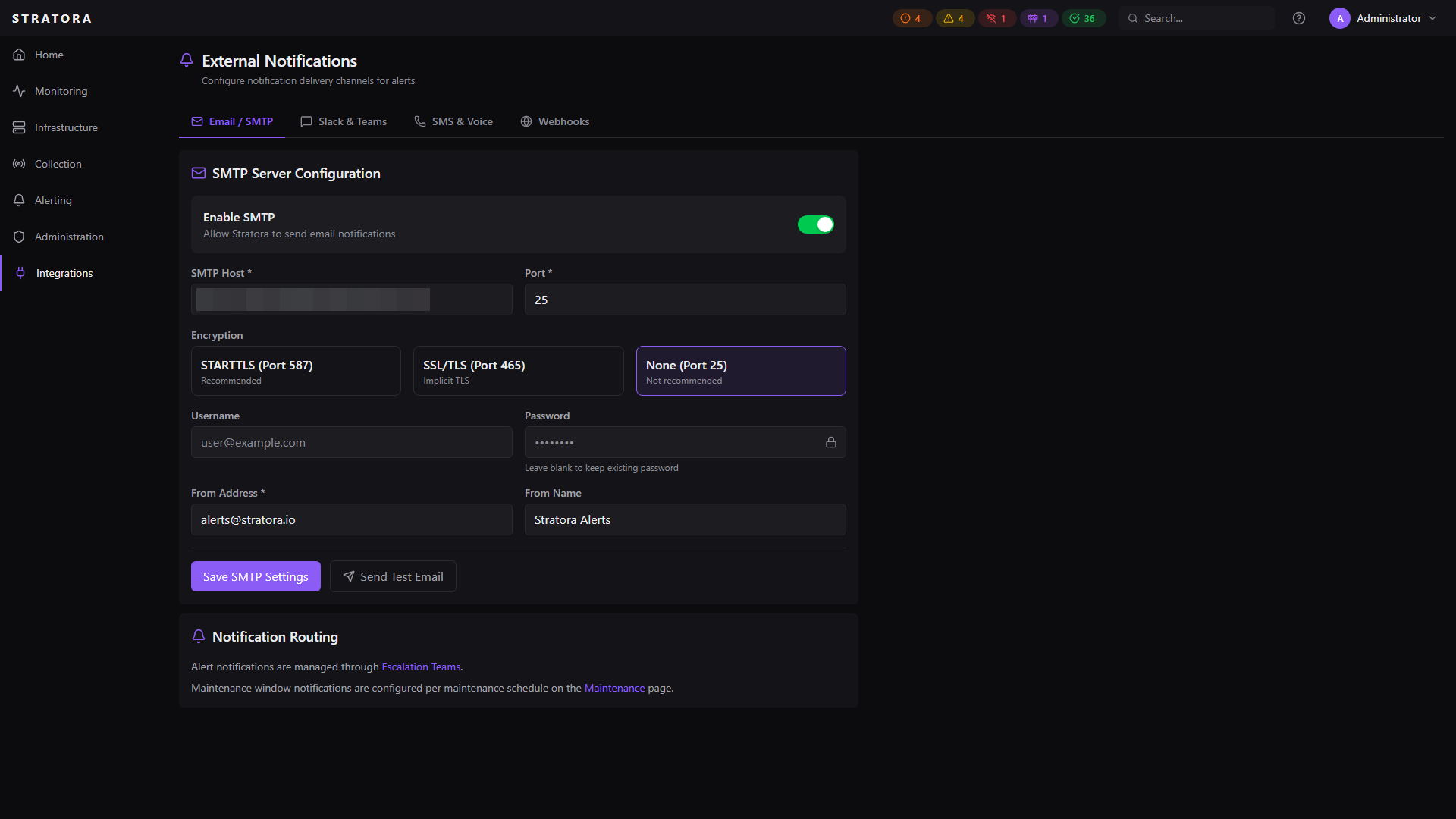
Email notifications use your organization's SMTP server to deliver HTML-formatted alert emails.
SMTP Configuration
Navigate to Settings → External Notifications → Email / SMTP to configure your mail server.
| Field | Required | Description |
|---|---|---|
| Host | Yes | SMTP server hostname (e.g., smtp.office365.com) |
| Port | Yes | SMTP port (typically 587 for STARTTLS, 465 for SSL) |
| Encryption | Yes | TLS (STARTTLS), SSL (implicit TLS), or None |
| Username | No | SMTP authentication username |
| Password | No | SMTP authentication password (encrypted at rest) |
| From Address | Yes | Sender email address (e.g., alerts@example.com) |
| From Name | No | Sender display name (default: "Stratora Alerts") |
| Enabled | Yes | Master toggle |
Testing
Enter a recipient email address and click Send Test Email to verify delivery. The test sends a confirmation email through your SMTP server.
Email Content
Alert emails are rendered from customizable email templates that include:
- Severity-colored header banner
- Node name, IP address, and site
- Alert details and timestamps
- "View in Stratora" action button
- Branded footer
Slack
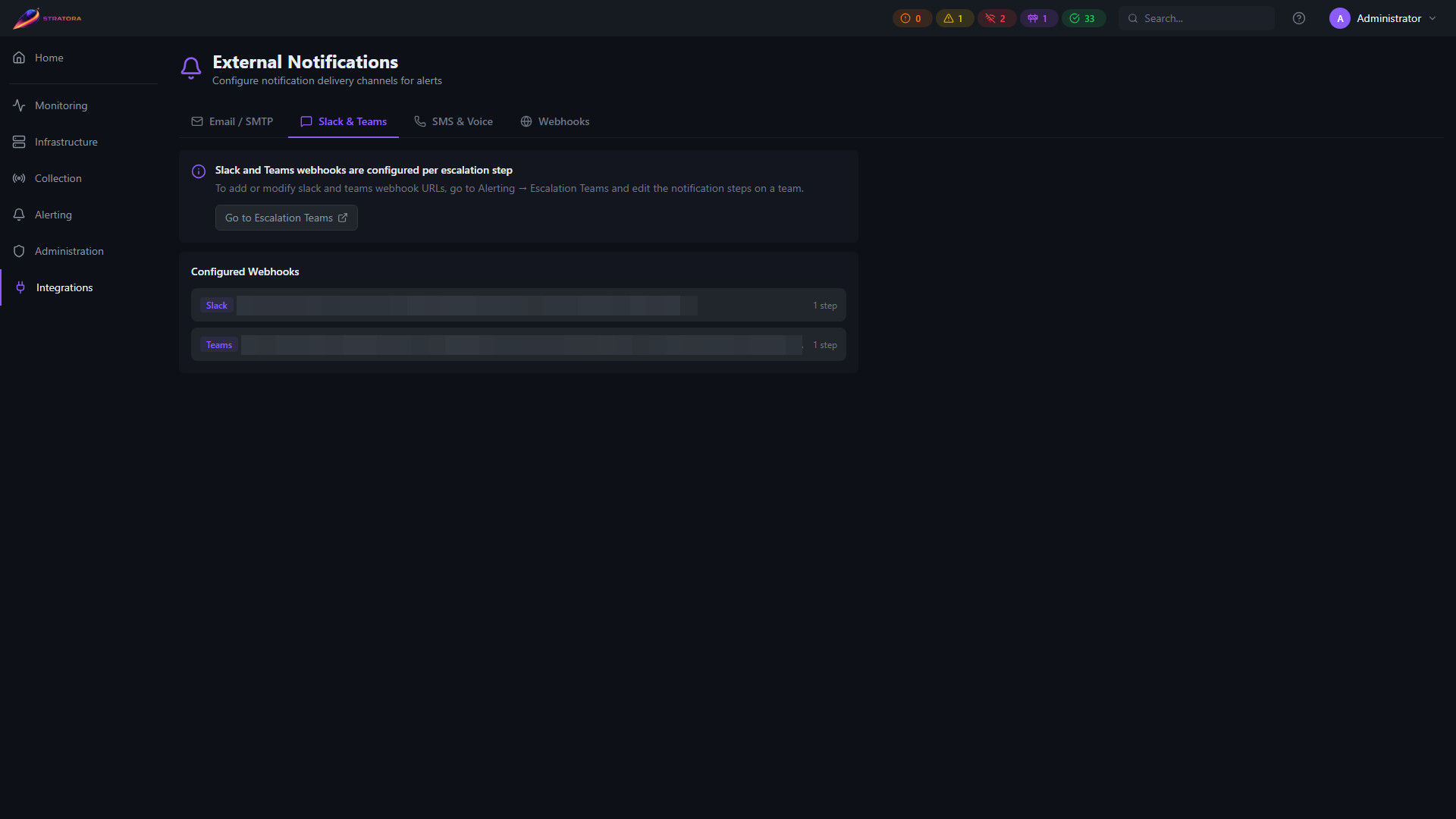
Slack notifications are delivered via incoming webhooks using Slack's Block Kit format.
Configuration
Each escalation step channel needs:
| Field | Required | Description |
|---|---|---|
| Webhook URL | Yes | Slack incoming webhook URL |
| Channel | No | Override the webhook's default channel (e.g., #critical-alerts) |
| Username | No | Override the bot display name (default: "Stratora") |
Message Format
Alert notifications include:
- Severity emoji and header (red circle for critical, orange diamond for warning)
- Node name and severity in a structured fields layout
- Alert summary and description
- Escalation team and step information
- Timestamp footer
Resolution notifications use a green checkmark with the alert name, node, duration, and resolved timestamp.
Testing
Use the Test button when configuring an escalation step channel to send a test message to your Slack webhook.
Microsoft Teams
Teams notifications are delivered via incoming webhooks using the Adaptive Cards v1.4 format for rich, interactive messages.
Configuration
Each escalation step channel needs:
| Field | Required | Description |
|---|---|---|
| Webhook URL | Yes | Teams incoming webhook URL |
Card Types
Stratora sends four types of Adaptive Cards:
| Card | When Sent | Style |
|---|---|---|
| Alert | When an alert fires | Red (critical) or yellow (warning) severity styling, with node details, metric values, and an "Acknowledge" action button |
| Resolved | When an alert resolves | Green styling with node details and alert duration |
| Acknowledged | When an alert is acknowledged | Yellow styling with acknowledger name and timestamp |
| Test | When testing the channel | Accent styling with confirmation message |
Alert cards include an Acknowledge button that links directly to the alert in Stratora, allowing on-call engineers to acknowledge from the Teams notification without opening the full UI.
Reliable Delivery
Teams notifications are processed through a notification queue with automatic retry:
- Up to 5 delivery attempts per notification
- Exponential backoff between retries (1s, 2s, 4s, 8s, up to 60s max)
- Transient failures (HTTP 408, 429, 502, 503, 504) are retried; permanent failures (4xx) are not
- All delivery attempts are logged for troubleshooting
Testing
Use the Test button to send a test Adaptive Card to your Teams channel and verify the webhook is working.
Generic Webhooks
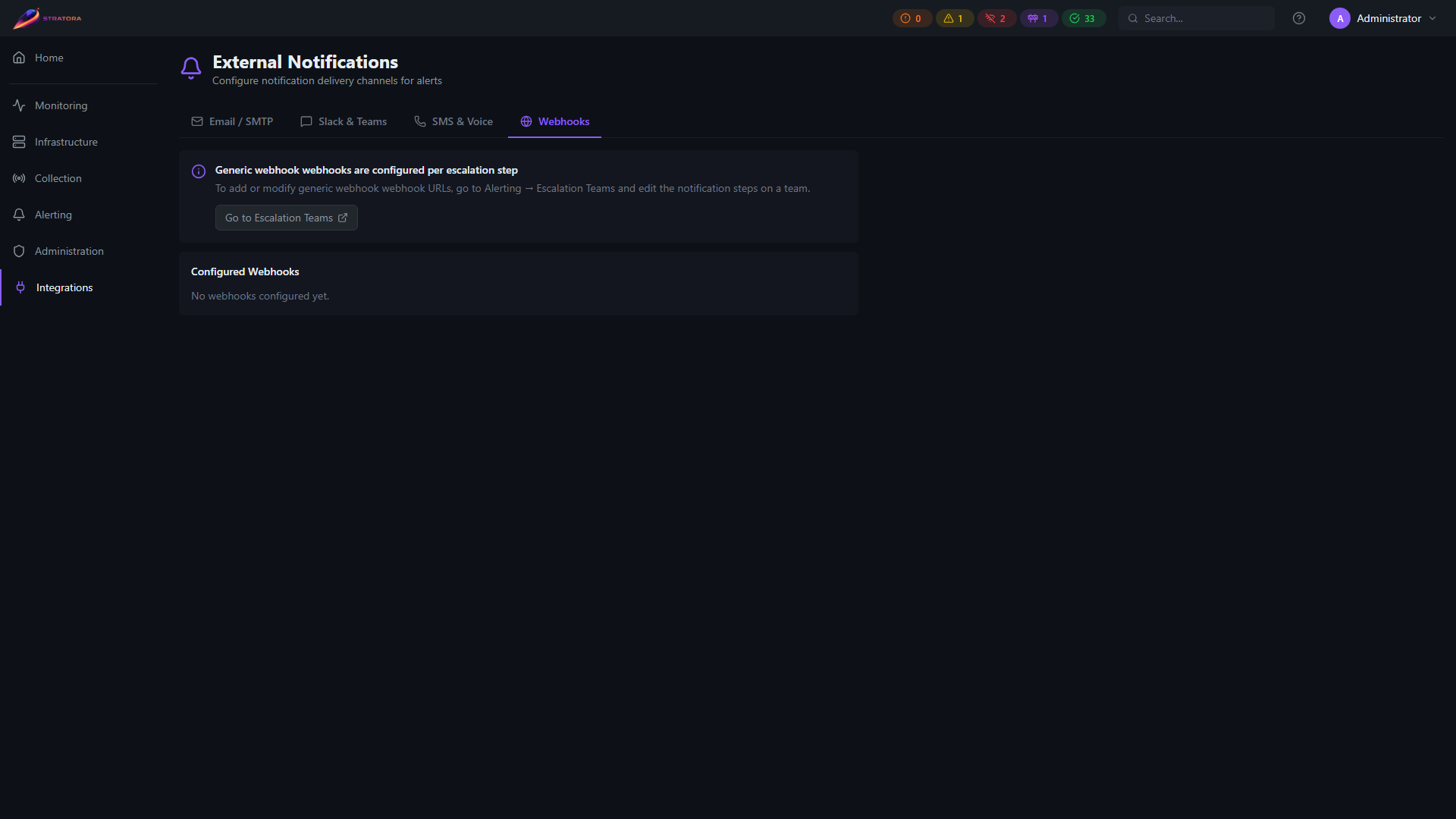
Generic webhooks send a JSON payload via HTTP POST to any URL, enabling integration with ticketing systems, automation platforms, PagerDuty, custom dashboards, or any system that accepts webhook callbacks.
Configuration
Each escalation step channel needs:
| Field | Required | Description |
|---|---|---|
| Webhook URL | Yes | Destination URL |
| Custom Headers | No | Key-value pairs added to the HTTP request (e.g., Authorization, X-API-Key) |
Alert Payload
{
  "type": "alert",
  "source": "stratora",
  "timestamp": "2026-01-15T20:45:00Z",
  "alert_id": "...",
  "node_id": "...",
  "node_name": "SERVER-01",
  "severity": "critical",
  "summary": "High CPU Usage on SERVER-01",
  "description": "CPU has been above 95% for 5 minutes",
  "alert_type": "metric",
  "alert_key": "cpu_high",
  "triggered_at": "2026-01-15T20:45:00Z",
  "escalation": "IT On-Call",
  "escalation_step": 1,
  "details": {}
}
Resolution Payload
{
  "type": "alert_resolved",
  "source": "stratora",
  "timestamp": "2026-01-15T20:52:00Z",
  "alert_id": "...",
  "node_id": "...",
  "node_name": "SERVER-01",
  "severity": "critical",
  "summary": "High CPU Usage on SERVER-01",
  "alert_type": "metric",
  "alert_key": "cpu_high",
  "triggered_at": "2026-01-15T20:45:00Z",
  "resolved_at": "2026-01-15T20:52:23Z",
  "duration": "7 minutes 23 seconds",
  "escalation_team": "IT On-Call",
  "escalation_step": 1,
  "details": {}
}
Testing
Use the Test button to send a test payload to your webhook URL:
{
  "type": "test",
  "source": "stratora",
  "timestamp": "2026-01-15T20:45:00Z",
  "message": "This is a test notification to verify your escalation team webhook configuration."
}
A successful test confirms the URL is reachable and returns an HTTP 2xx response. Custom headers are included in the test request.
SMS (Twilio)
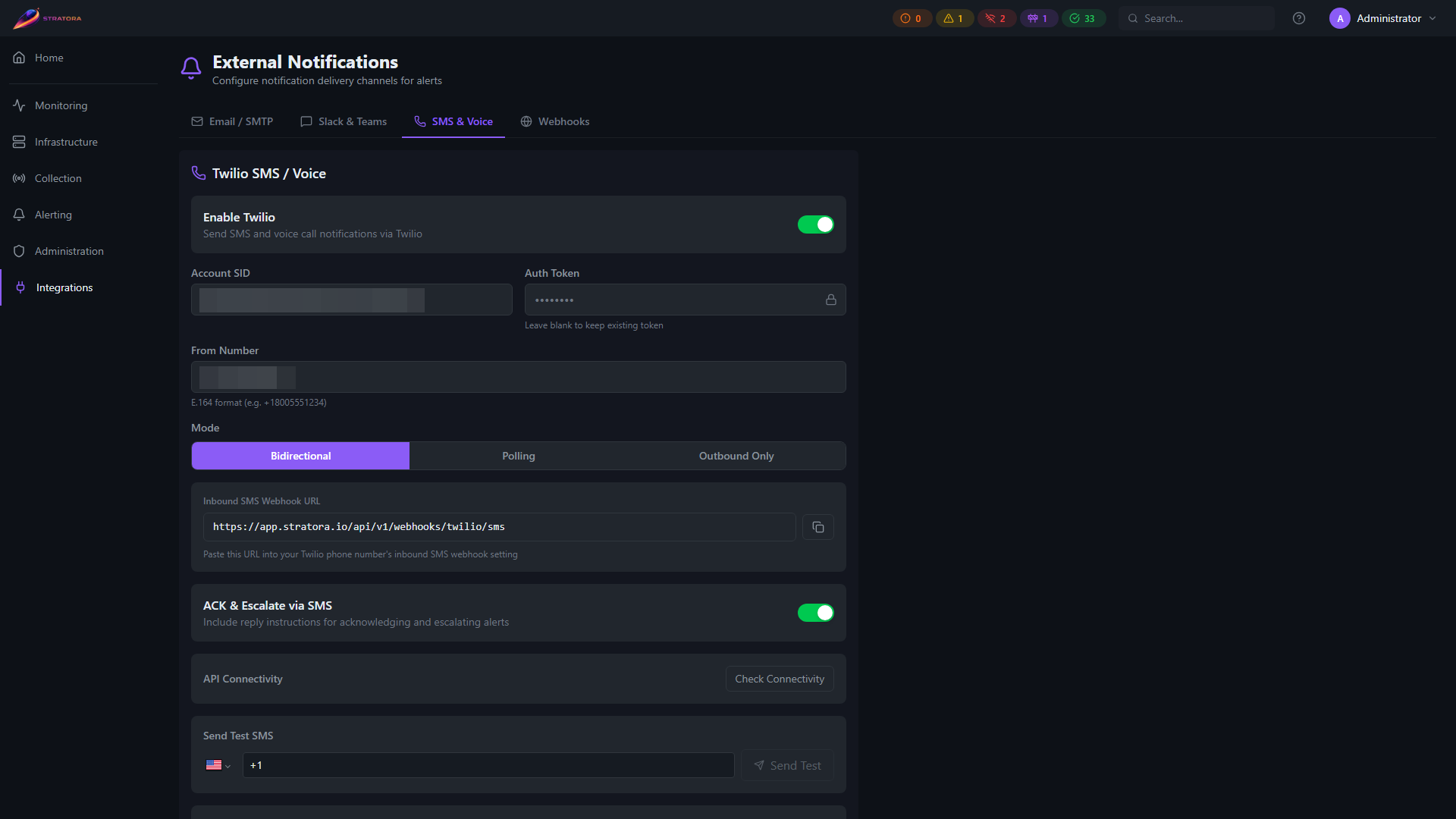
Stratora sends SMS alert notifications and receives ACK/Escalate replies via Twilio. Bring your own Twilio account — Community, Pro, and Enterprise editions are all supported.
Prerequisites
- A Twilio account (free dev accounts work for testing)
- A phone number with SMS capability (toll-free recommended for production volume)
- For polling mode: a Twilio Sync Service and a Twilio Function to handle inbound SMS
- For bidirectional mode: Stratora must be reachable from the internet at the configured
external_url
Configuration
Navigate to Settings → External Notifications → SMS & Voice.
| Field | Required | Description |
|---|---|---|
| Account SID | Yes | Twilio account SID (ACxxxxxxxx) |
| Auth Token | Yes | Twilio auth token (encrypted at rest) |
| From Number | Yes | E.164 format (e.g., +18005551234) |
| Mode | Yes | Bidirectional, Polling, or Outbound Only |
| ACK & Escalate | No | Include reply instructions in SMS body (default: on) |
Credential changes (Account SID, Auth Token, From Number) take effect immediately after saving — no restart needed. Mode changes require a backend service restart; the UI displays an amber warning banner when this applies.
Modes
| Mode | Inbound Handling | Best For |
|---|---|---|
| Bidirectional | Twilio sends inbound SMS directly to Stratora via webhook | Internet-accessible deployments |
| Polling | Stratora polls a Twilio Sync Map for reply actions | Air-gapped or outbound-only networks |
| Outbound Only | No inbound handling — SMS body omits reply instructions | Send-only alerting |
Bidirectional Mode Setup
- Save your Twilio credentials and select Bidirectional mode
- Copy the webhook URL displayed in the settings page
- In the Twilio Console → Phone Numbers → Active Numbers → select your number → Messaging → "A message comes in" → paste the webhook URL
- Stratora validates inbound requests using
X-Twilio-Signature(HMAC-SHA1) — spoofed requests are rejected
Inbound webhook requirements
For bidirectional mode (and any inbound Twilio path — SMS replies and voice DTMF), all of the following must hold:
- Stratora is reachable from Twilio at the configured
server.external_url(public DNS, firewall/NAT allowing inbound HTTPS to Stratora). - The Twilio webhook URL matches
server.external_urlexactly — scheme, host, and port. Stratora reconstructs the URL it signs against fromexternal_url, never from the incoming request'sHostheader, so a mismatch fails signature validation. - HTTPS with a certificate Twilio trusts (a publicly trusted CA; Twilio will not post to a self-signed endpoint).
If the webhook URL and external_url disagree, inbound requests are rejected (HTTP 403). This is no longer silent: Stratora emits an auth.webhook_rejected security event (with the path, source IP, and reason) to its audit log — and to any syslog destination — so a misconfiguration is visible rather than a mystery. Check the audit log if ACK-by-reply or voice DTMF stops working.
If you point external_url at an internal name (so in-app email links resolve on your LAN) but Twilio must reach Stratora at a different public name, inbound webhooks will 403 because the signed URLs won't match. Today the two must be the same name; a dedicated webhook base URL is on the roadmap. Polling mode avoids this entirely for SMS (it needs no inbound path); voice DTMF is webhook-only.
Polling Mode Setup
Polling mode is designed for air-gapped or segmented networks where Stratora cannot receive inbound connections from the internet.
- Create a Sync Service in the Twilio Console, copy the Service SID
- Create a Sync Map named
alert-actions(or configure a custom name) - Create a Twilio Function to handle inbound SMS and write to the Sync Map:
// Twilio Function: parse inbound SMS, write to Sync Map
exports.handler = async function(context, event, callback) {
  const client = context.getTwilioClient();
  const body = (event.Body || '').trim().toUpperCase();
  const parts = body.split(/\s+/);
  if (parts.length < 2 || !['ACK', 'ESCALATE'].includes(parts[0])) {
    return callback(null, new Twilio.twiml.MessagingResponse());
  }
  const syncService = 'YOUR_SYNC_SERVICE_SID';
  const mapName = 'alert-actions';
  await client.sync.v1.services(syncService).syncMaps(mapName).syncMapItems.create({
    key: `${Date.now()}-${event.From}`,
    data: { action: parts[0], token: parts[1].toLowerCase(), from: event.From, ts: new Date().toISOString() },
    ttl: 3600,
  });
  return callback(null, new Twilio.twiml.MessagingResponse());
};
- Set the Function URL as the inbound SMS webhook on your Twilio phone number
- In Stratora settings, enter the Sync Service SID and set mode to Polling
- Stratora polls the Sync Map every 15 seconds (configurable) and processes ACK/ESCALATE items
Outbound Only Mode
No inbound handling. SMS alerts are sent but reply instructions (ACK/ESCALATE tokens) are omitted from the message body. Recipients are directed to log in to Stratora to manage alerts.
Configuring Recipients
SMS notifications are sent to escalation team rotation members who have SMS enabled:
- Go to Alerting → Escalation Teams → select a team
- Add or edit an escalation step with the SMS channel
- On each rotation member, enter a phone number (E.164 format) and enable the SMS toggle
Phone numbers are masked in all server logs for privacy (+1***1234).
ACK and Escalate via SMS Reply
When ACK & Escalate is enabled and the mode supports inbound handling:
- Reply format:
ACK <token>orESCALATE <token>(case-insensitive) - Tokens are single-use with a 24-hour TTL
- ACK: acknowledges the alert; ACK notifications sent to all other channels
- ESCALATE: manually advances the escalation to the next step
Testing
- Check Connectivity — verifies
api.twilio.com:443is reachable from the server - Send Test SMS — sends a test message to a phone number you specify, returns the Twilio message SID on success
Toll-Free Number Verification
Twilio requires toll-free number verification for production SMS volume. Free dev accounts have throughput caps that are sufficient for testing but not for production.
Submit verification in the Twilio Console before production use: Twilio Toll-Free Verification
A2P 10DLC Registration (US Long Codes)
If you send SMS from a US long code (a standard 10-digit phone number, not toll-free and not short code), US carriers require A2P 10DLC registration under the carrier-imposed Application-to-Person messaging rules.
Without 10DLC registration, US carriers will return Twilio error code 30034 ("US A2P 10DLC — Message from an Unregistered Number") and your SMS notifications will be blocked. Test SMS from the Stratora settings page will succeed (Twilio accepts the message) but recipients will not receive it.
Registration steps (one-time, per Twilio account):
- Register a Brand in the Twilio Console — Brand Registration verifies your business identity. Approval typically takes 1–3 business days.
- Register a Campaign — describes the use case (e.g., "Low Volume Mixed", "Account Notifications"). Campaign approval is usually instant for low-volume use cases.
- Associate your phone number with the approved Campaign.
Detailed steps: Twilio: How to Register for A2P 10DLC
Toll-free numbers (e.g., +1800, +1888, +1877) are exempt from 10DLC registration but require toll-free verification instead — see the section above.
Non-US numbers are not subject to 10DLC. International deployments should follow the per-country sender registration rules in their target geography.
Troubleshooting
- Check backend logs for
[Twilio/SMS],[Twilio/Webhook],[Twilio/Sync]prefixed lines - Verify config source at startup:
[Twilio] config loaded from databaseor[Twilio] config loaded from config.yaml (no DB record found) - Mode changes require a server restart — the UI warns when this applies
- In bidirectional mode, confirm
server.external_urlmatches the URL configured in Twilio
Voice Calls
Stratora can call escalation team members when an alert fires. The call uses text-to-speech to announce the alert. Acknowledgement is handled out-of-band — see Acknowledging a voice alert below.
What you hear
"Stratora alert. CRITICAL severity on SERVER zero one, site HQ. High CPU Usage. To acknowledge, reply ACK to the SMS notification, click the Acknowledge link in your email, or open Stratora. Goodbye."
The announcement uses Amazon Polly text-to-speech. Hostnames are spelled out character-by-character so codes and short identifiers (e.g., srv-01, fw-a) come through clearly even on poor-quality audio.
Acknowledging a voice alert
Voice calls are announcement-only in this release — there is no DTMF (keypad) acknowledgement. The call is informational; to acknowledge or escalate the alert, use one of these paths:
- Reply
ACK <token>to the SMS notification (if SMS is also configured on the team) - Click the Acknowledge link in the email notification
- Open Stratora and acknowledge the alert from the alerts page
DTMF (in-call keypad acknowledgement) is on the post-GA roadmap. It requires a small Cloudflare Worker relay to bridge Twilio's webhook callbacks to on-prem Stratora servers without exposing them to the internet. Tracked as Item 18.
Requirements
- Twilio integration configured (any of the three modes —
bidirectional,polling, oroutbound_only). Voice uses inline TwiML in the outbound call request, so it does not require Twilio to fetch a TwiML URL from Stratora and works in all three modes. - Rotation member must have a phone number (E.164 format) and Voice enabled
Enabling voice for a team member
- Go to Alerting → Escalation Teams → select a team
- Edit a rotation member
- Enter a phone number in E.164 format (e.g.,
+18005551234) - Enable the Voice toggle
- Save the team
Resolution calls
When an alert resolves, members with voice enabled receive a call:
"This is a Stratora resolved notification. High CPU Usage on SERVER-01 has been resolved. Goodbye."
No keypress is required for resolution calls.
Toll-free number verification
Twilio requires toll-free numbers to be verified before carriers will deliver calls and SMS at production volume. During verification (typically 2–5 business days), messages may show as UNDELIVERED with error 30032 — this is expected and resolves automatically once verification clears.
Submit verification at: Twilio Toll-Free Verification
How Notifications Connect to Alerting
Notifications are delivered through the escalation team system:
- An alert configuration is linked to an escalation team
- When an alert fires, the escalation engine starts at Step 1
- Each step has one or more channels (email, Slack, Teams, webhook)
- If the alert isn't resolved, the engine advances through steps with configured delays
- When the alert resolves, resolution notifications are sent to all channels that were previously notified
For on-call rotation teams, channels can dynamically target the current on-call person, next on-call, or all rotation members instead of static recipients.
See Escalation Teams for full details on multi-step escalation, schedules, and on-call rotation.
Notification Audit Trail
All real-alert notification delivery attempts are recorded in an audit log, including:
- Notification type and channel
- Delivery status (sent, failed, retried)
- HTTP response code and response time
- Alert and device information
- Escalation team and step
This audit trail helps diagnose delivery issues and provides evidence of notification compliance.
Test alerts are not audit-tracked. When you use Fire test alert on an alert configuration, the dispatch goes through a one-shot validation path that does not populate the notification audit log. Use Fire test alert to confirm a configuration's recipients receive a sample message; use real-alert history for compliance evidence.