Escalation Teams
An escalation team defines who gets notified when an alert fires and how notifications escalate if the alert isn't resolved. Each team has one or more steps, each with its own delay and notification channels.
How Escalation Works
- An alert configuration fires and creates an alert
- The escalation engine picks up the alert and starts at Step 1
- If the alert is still active after the delay defined on the next step, notifications advance to Step 2
- This continues through all defined steps
- If repeat is enabled, the cycle starts over from Step 1
The escalation engine runs on a 10-second cycle, checking for alerts that need escalation.
Acknowledging an alert stops the escalation chain entirely. Once an alert is acknowledged, the engine excludes it from further dispatch — no more steps fire, no repeats, no resolution notifications until the alert resolves or is un-acknowledged. Re-acknowledging is idempotent. For longer-term silencing without halting future re-fires, use muting or a maintenance window instead.
Creating an Escalation Team
Navigate to Alerting → Escalation Teams and click Add Team. The create-team modal is a five-step wizard:
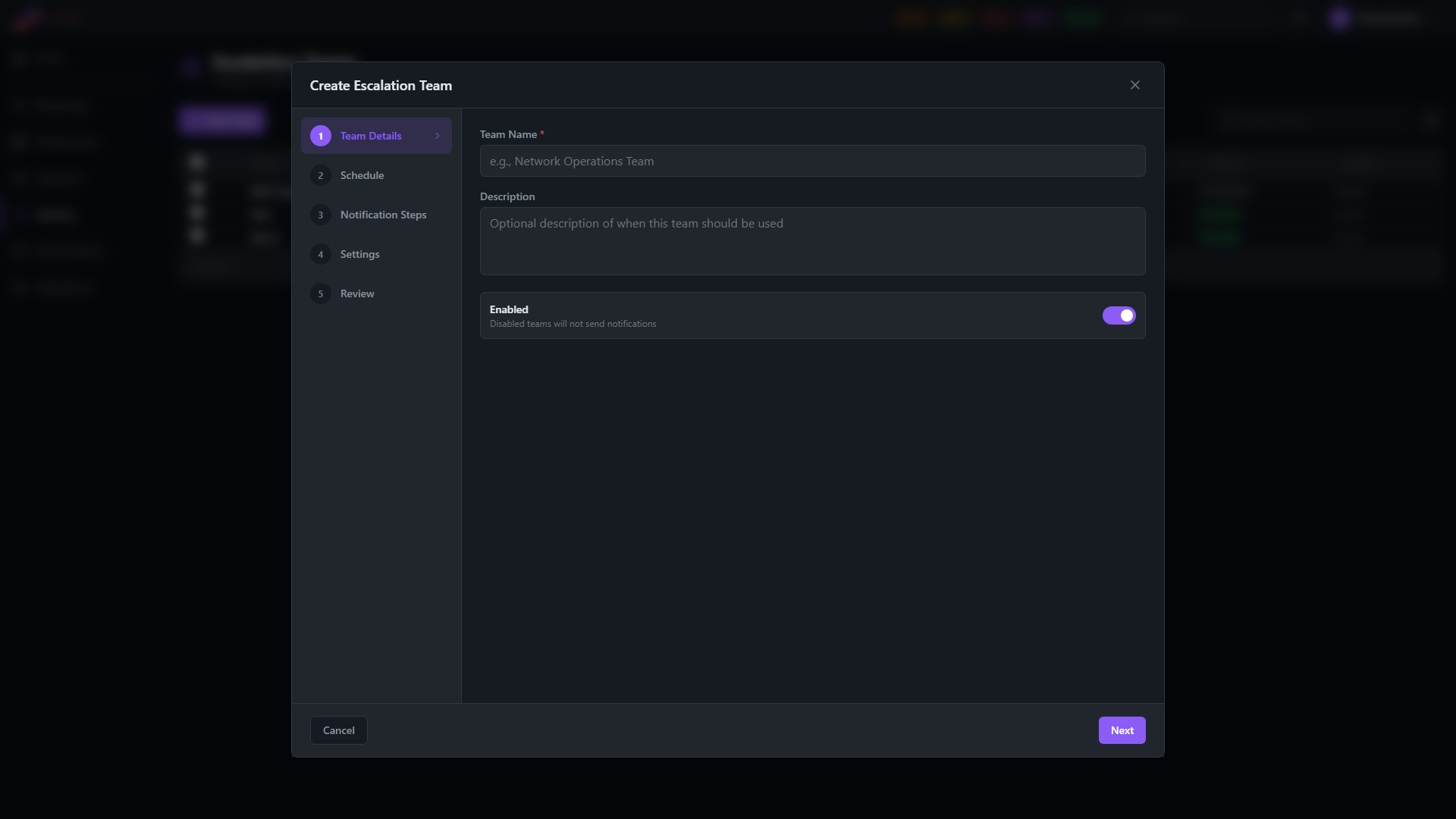
Step 1 — Team Details
Step 2 — Schedule
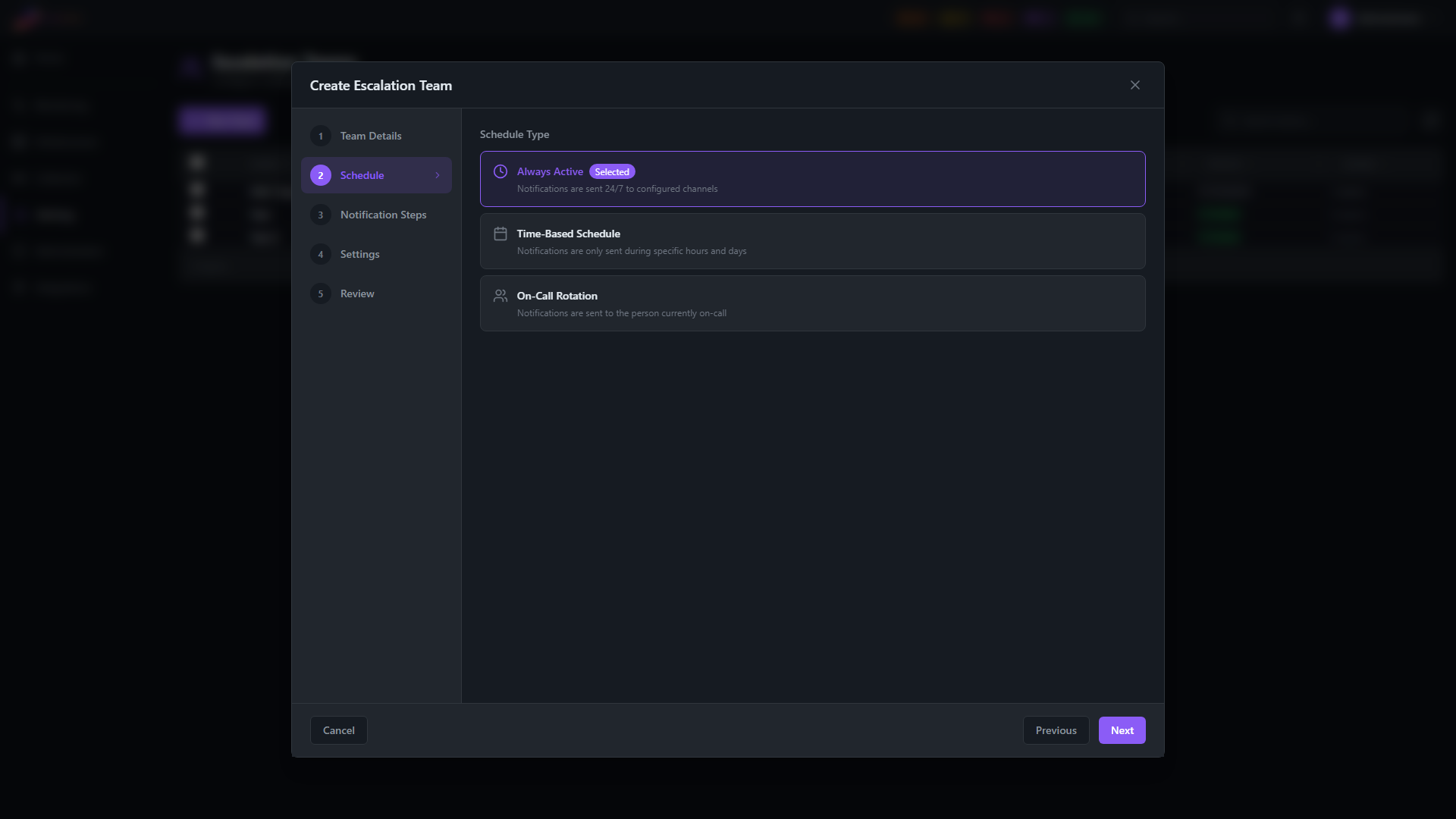
See Schedules below for full details on each schedule type.
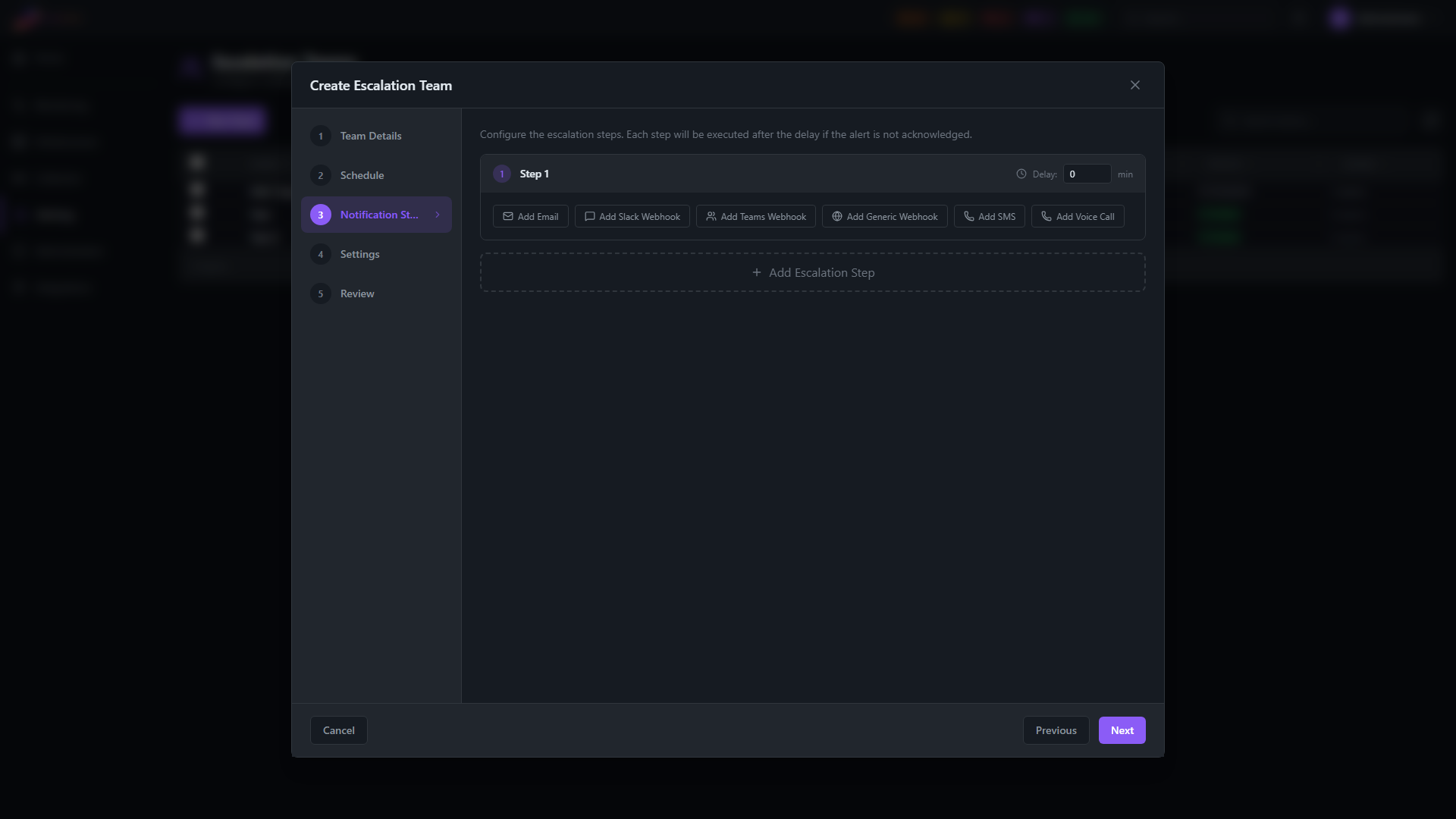
Step 3 — Notification Steps
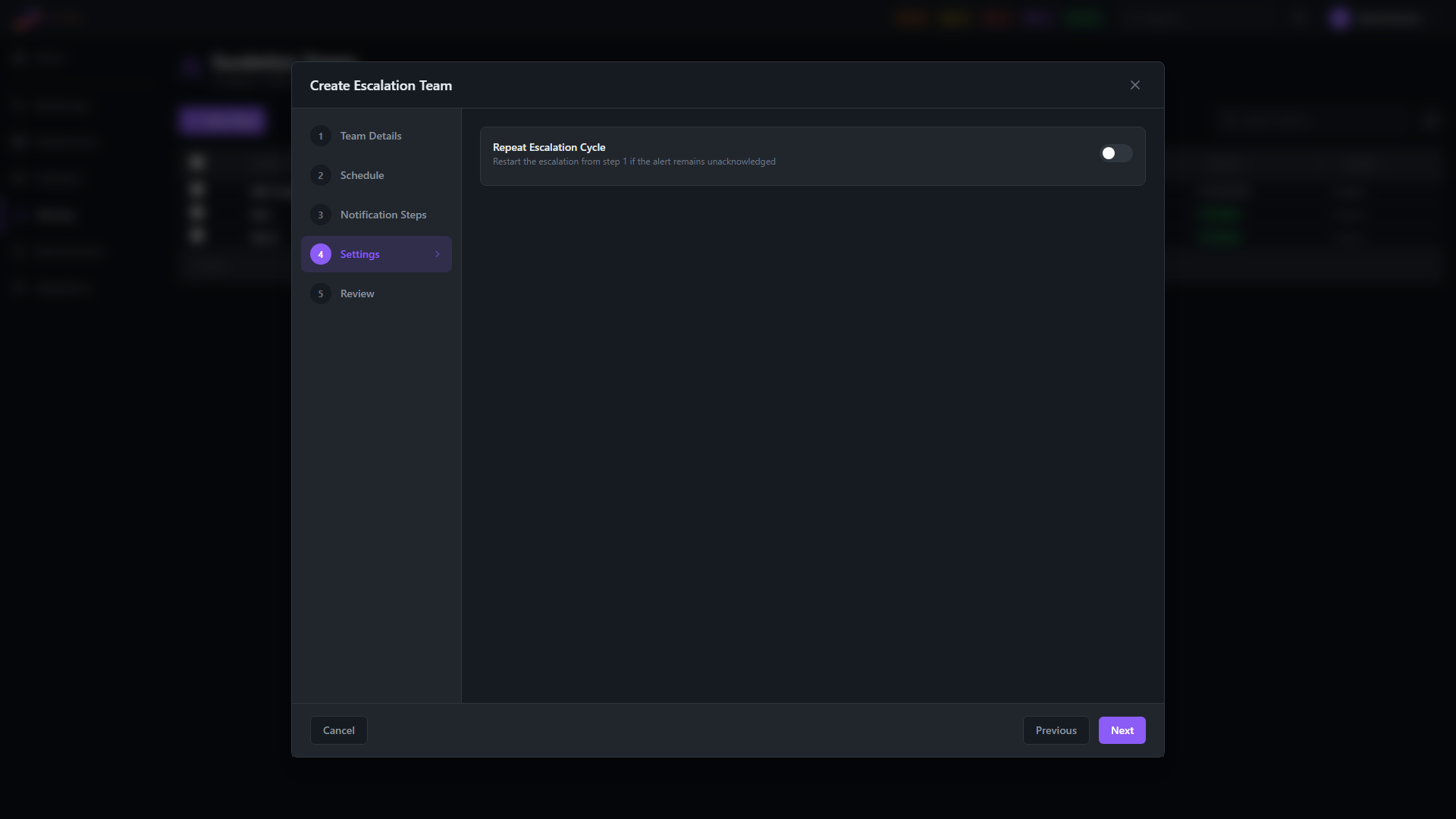
Step 4 — Settings
Step 5 — Review
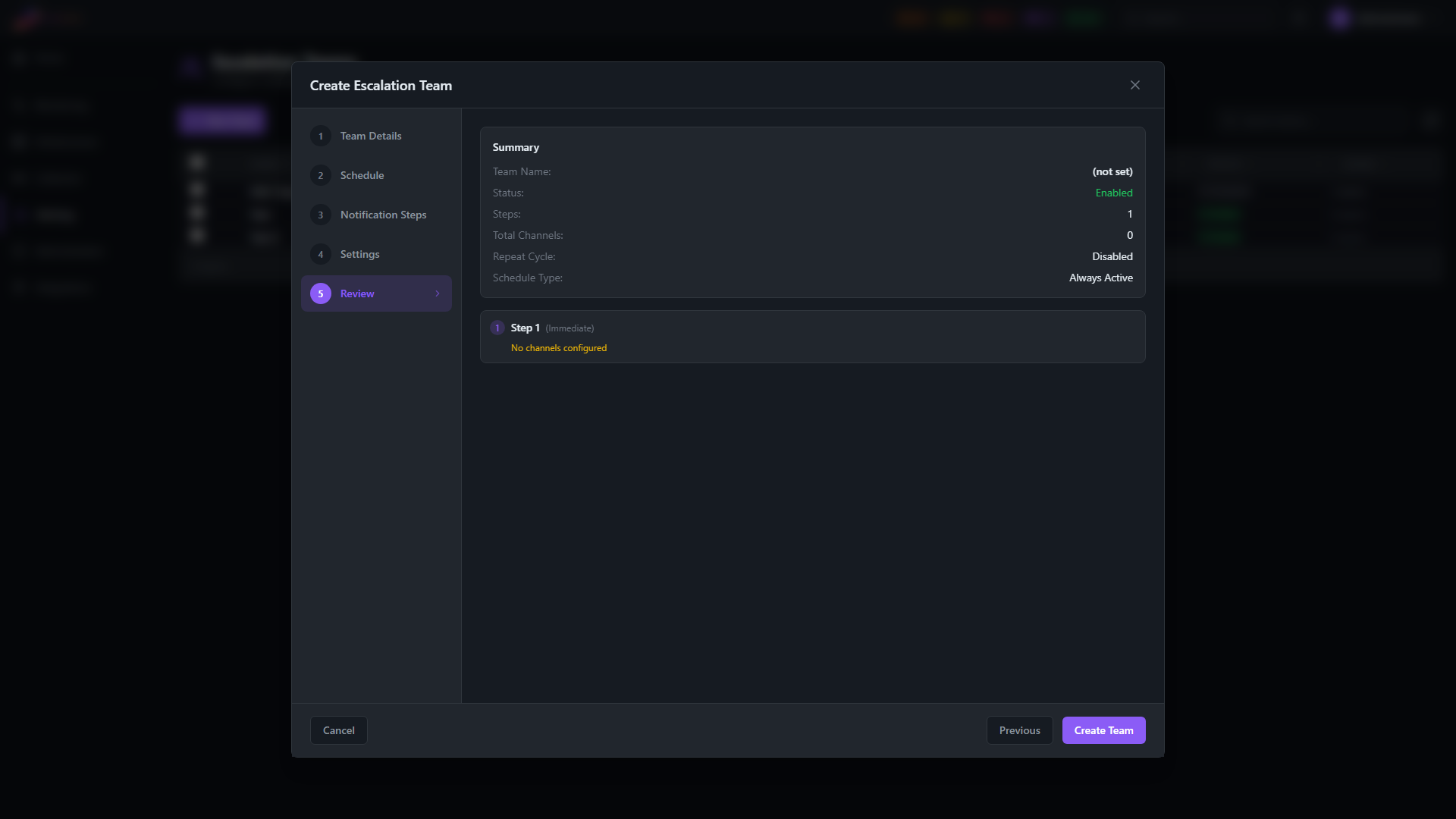
Team Fields
| Field | Required | Description |
|---|---|---|
| Name | Yes | Display name for the team (e.g., "Network Operations", "After-Hours On-Call") |
| Description | No | Notes about the team's purpose |
| Enabled | Yes | Whether the team is active (default: yes) |
| Schedule Type | Yes | When the team is active — see Schedules |
| Repeat Enabled | No | Whether to loop back to Step 1 after all steps complete |
| Repeat Interval | No | Minutes between repeat cycles (if repeat is enabled) |
| Max Repeats | No | Maximum number of repeat cycles (0 = unlimited) |
Escalation Steps
Each team has one or more steps, executed in order. Every step has:
| Field | Description |
|---|---|
| Step Order | Execution order (1, 2, 3, ...) |
| Delay | Minutes to wait before this step fires (0 for the first step — immediate) |
| Channels | One or more notification channels to use at this step |
Example Setup
| Step | Delay | Channel | Target |
|---|---|---|---|
| 1 | Immediate | on-call engineer | |
| 2 | 15 minutes | Slack + Email | team lead |
| 3 | 30 minutes | Teams + Email | operations manager |
If the alert is acknowledged or resolved before a step's delay elapses, that step is skipped.
Notification Channels
Each step can use one or more notification channels.
| Channel | Configuration | Status |
|---|---|---|
| One or more email addresses | Available | |
| Slack Webhook | Incoming webhook URL, optional channel and username override | Available |
| Microsoft Teams Webhook | Incoming webhook URL | Available |
| Generic Webhook | URL and optional custom headers | Available |
| SMS | Phone numbers | Available — requires Twilio configuration; see Twilio Integration |
| Voice Call | Phone numbers | Available — requires Twilio configuration; see Twilio Integration |
Email
Specify one or more email addresses per step. Emails include the alert severity, node name and IP, metric value, threshold, and triggered time.
Slack
Provide a Slack incoming webhook URL. Notifications are sent as formatted Slack Block Kit messages with alert details.
Microsoft Teams
Provide a Teams incoming webhook URL. Notifications are sent as Adaptive Cards that include:
- Alert severity and type
- Node name and IP address
- Current metric value and threshold
- Triggered timestamp
- An Acknowledge action button linking directly to the alert in Stratora
Generic Webhook
Send a JSON payload via HTTP POST to any URL. You can add custom headers for authentication or routing.
Testing Channels
Before saving, use the Test button to send a test notification through any channel. This verifies that webhooks, email addresses, and integrations are configured correctly.
The per-channel Test button on this page tests an individual channel's delivery (email recipient, webhook URL, SMS or voice number). To test that an alert configuration end-to-end fires correctly and emails the right recipients, use Fire test alert on the alert configuration itself. See Sending a test alert.
Schedules
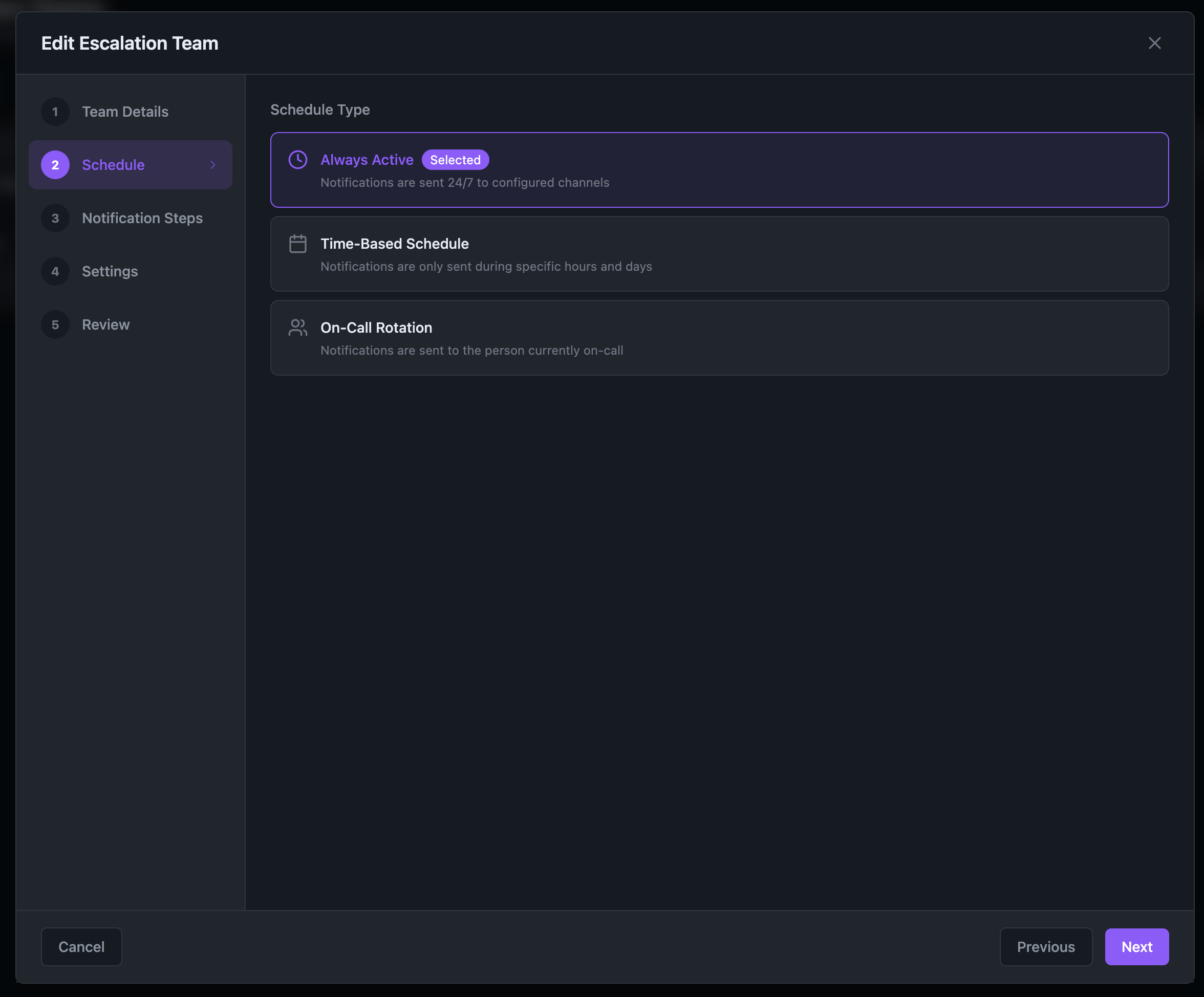
Each escalation team has a schedule type that controls when the team is eligible to dispatch notifications. Three types are supported.
| Schedule Type | When Notifications Dispatch |
|---|---|
| Always Active | The team dispatches 24/7. No time-based gating. |
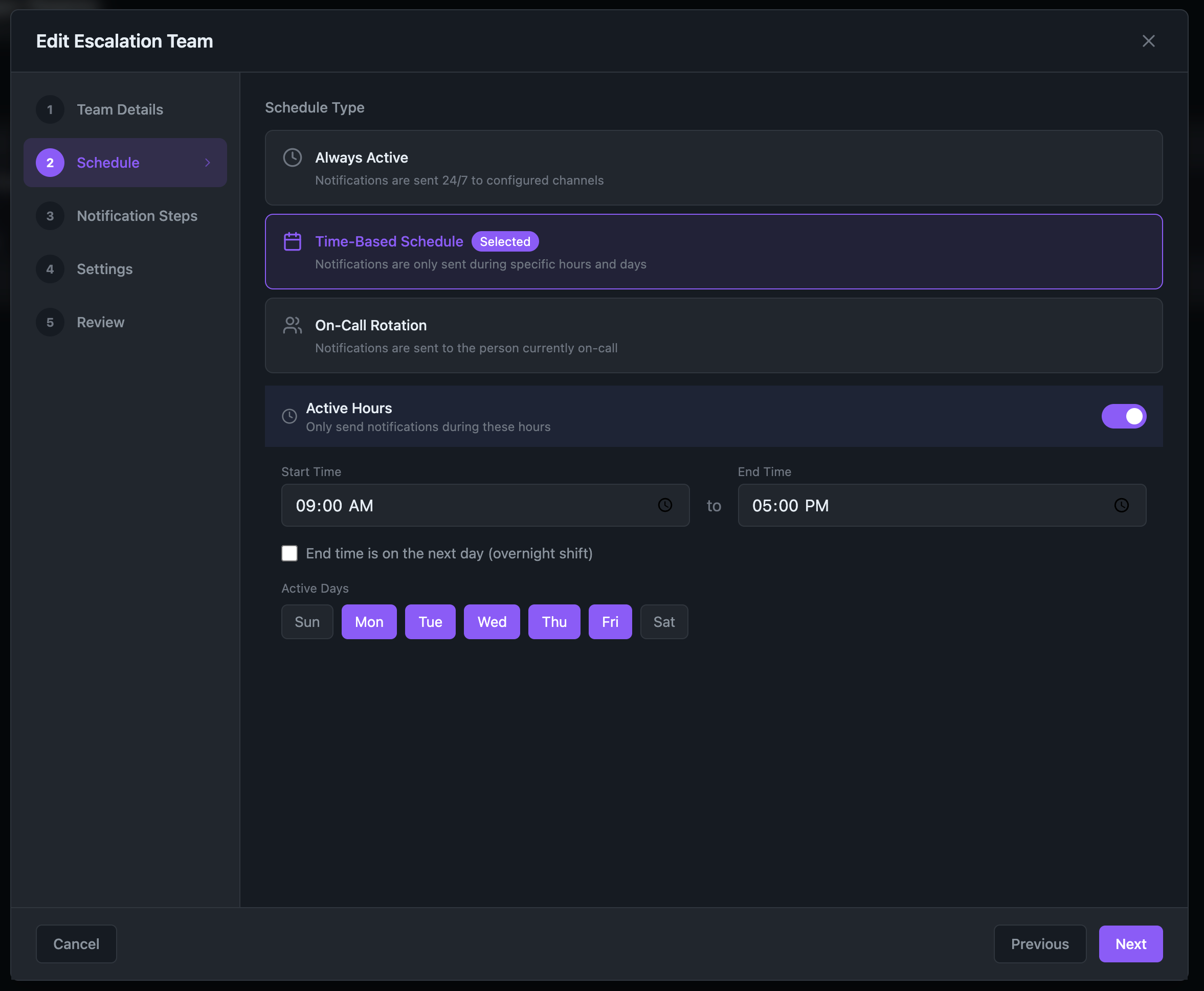
| Time-Based | The team dispatches only during configured active hours on configured active days. Outside the window, alerts assigned to the team are still created and tracked, but no notifications are sent until the next active interval begins. |
| Rotation | An on-call rotation cycles through team members on a configured cadence. Optionally combined with active hours. See On-Call Rotation below. |
Always Active
The default. Choose Always Active for teams that need to handle alerts at any hour — for example, an off-hours pager team or a team whose members rotate via a separate scheduling tool that you'd rather Stratora not duplicate.
Time-Based
Time-Based schedules dispatch only during a window you define on specific days of the week.
| Field | Required | Description |
|---|---|---|
| Active Days | Yes | One or more days of the week the schedule applies on (e.g., Monday–Friday) |
| Active Hours Start | Yes | Start of the window (24-hour clock, in the server's local timezone) |
| Active Hours End | Yes | End of the window. May be earlier than the start time — Stratora interprets this as an overnight window that wraps midnight |
Behavior during inactive hours
When a team is outside its active window:
- Alerts are still created. The alert evaluator runs on its normal 10-second cycle and continues to detect conditions, create alerts, and update severities.
- Alerts assigned to the team are flagged as suppressed (an internal flag separate from per-alert mute, so a single alert can be muted, suppressed, or both). The alerts list shows them; they are excluded from default UI counters where appropriate.
- The escalation engine skips them. No notifications are sent on any channel — email, Slack, Teams, webhook, SMS, or voice.
When the window opens — for example, when the clock crosses 09:00 on a Monday — Stratora reconciles every team's schedule once per minute. Suppressed alerts for the now-active team are unflagged and the escalation engine resumes dispatch on its next 10-second cycle. Worst-case delay between window-open and first dispatch is approximately one reconciler cycle plus one engine cycle (around 70 seconds).
Dispatch resumes from the existing escalation step. If the alert was at Step 2 when the window closed, dispatch picks up at Step 2 — Stratora does not rewind to Step 1, and it does not skip ahead to a later step to compensate for the gap.
Race window protection
Alerts that are created during an inactive window are immediately marked suppressed at create time, so the engine never picks them up in the gap between alert creation and the next reconciler tick.
Interaction with maintenance windows
Active hours and maintenance work independently. A node in maintenance is suppressed regardless of the team's schedule. A team outside its active hours is suppressed regardless of node maintenance state. If both apply, the alert remains suppressed until both clear.
Rotation
Rotation schedules are covered in detail under On-Call Rotation. A rotation team can optionally enable active hours alongside the rotation — useful when the rotation should only page during business hours and a different team handles after-hours coverage.
On-Call Rotation
Rotation members define the on-call roster. Each member has:
| Field | Description |
|---|---|
| Position | Order in the rotation roster (1, 2, 3, ...) |
| Name | Display name |
| Email address for notifications | |
| Phone | Phone number for SMS and voice notifications. Use E.164 format (e.g., +18005551234) — required by Twilio for delivery. |
| Contact | Optional link to a contact record |
Position vs. On-Call #N — important distinction
A rotation member's Position is a fixed slot in the roster — it determines the rotation order, not who is currently on-call. On-Call #1, On-Call #2, etc. are rotation-relative targets evaluated at alert time:
- On-Call #1 = whoever is currently on-call right now.
- On-Call #2 = whoever takes over at the next rotation handoff.
- On-Call #3 = the person after that, and so on.
Example
A team has three members in roster order: Alice (Position 1), Bob (Position 2), Carol (Position 3). The rotation period is 7 days, and today Bob is on-call.
| Target | Resolves To | Why |
|---|---|---|
| On-Call #1 | Bob | Bob is the current on-call |
| On-Call #2 | Carol | Carol is next in the rotation |
| On-Call #3 | Alice | Rotation wraps around |
Next week, after the handoff, On-Call #1 will be Carol — not Alice — even though Alice is at Position 1 in the roster. The roster Position controls order; the On-Call #N target tracks who's actually up at the moment the alert fires.
Reordering and removing members
- Reordering the roster (drag to change Position) changes who comes next in the rotation. The currently on-call member does not change immediately — the next handoff is the first time the new order takes effect.
- Removing a member who is currently on-call advances the rotation: the next member in the new roster becomes On-Call #1 immediately.
On-Call Targeting
Escalation step channels can target rotation members dynamically:
| Target | Who Gets Notified |
|---|---|
| On-Call #1 (Current) | Whoever is currently on-call |
| On-Call #2 (Next) | Whoever takes over at the next handoff |
| On-Call #3, #4, ... | Subsequent positions in the rotation cycle |
| All On-Call | Every member in the roster |
| Specific contacts | Fixed recipients (not rotation-aware) |
This lets you build steps like: "Notify On-Call #1 immediately, then escalate to On-Call #2 after 15 minutes if unresolved."
Per-Rotation-Member Test SMS / Voice
To verify that each rotation member's phone number is correctly wired for SMS and voice delivery, the rotation member list provides per-member Send Test SMS and Send Test Voice buttons. These tests dispatch directly to the selected member's phone field — independent of the per-channel Test buttons on the escalation step (which test the channel's wiring, not a specific roster member's number).
Each per-member test:
- Resolves the SMS or voice phone field assigned to that rotation member at the time the button is clicked
- Routes the dispatch through the same Twilio code path real alerts use
- Surfaces success or failure inline on the member row — including the Twilio error code when delivery fails (e.g., 401 / ApiError 20003 for an invalid SID/token, 30034 for an unregistered A2P 10DLC sender)
- Does not create an alert in the alerts list and does not trigger the escalation engine
Use the per-member tests during initial setup to confirm every member's number is reachable, and after any phone-number edit to confirm the change took effect. The escalation step's per-channel Test button remains the right tool for validating the channel's wiring (correct SID/token, correct webhook configuration, etc.).
SMS and voice notifications require Twilio to be configured in Settings → External Notifications → SMS & Voice. See Twilio Integration for setup, modes, and 10DLC registration requirements.
Repeat Behavior
When repeat is enabled and all steps have been exhausted without the alert being resolved:
- The escalation resets to Step 1
- The cycle repeats after the configured repeat interval
- Repeats continue up to max repeats (or indefinitely if set to 0)
This ensures critical alerts don't go unnoticed if the initial notifications are missed.
Resolution Notifications
When an alert resolves, the escalation engine automatically sends resolution notifications to all channels that were previously notified during the alert's lifetime. This ensures everyone who was alerted knows the issue has been cleared.
Resolution notifications are sent only once per channel, even if the channel was notified across multiple escalation steps.
Recipient Coverage
When a step notifies an on-call channel, Stratora surfaces every intended recipient — including any that could not be reached. If an on-call target has no usable contact method for the channel (for example, a rotation member with no phone number on an SMS step), that recipient is reported as skipped rather than silently dropped. Skipped recipients appear in the notification's delivery record and in the alert's notification history, so there are no silent gaps in who was — and wasn't — paged. The channel's dispatch is unchanged; this is visibility only.
Symptom Suppression (Inhibition)
When a node is unreachable, downstream alerts on that same node — service stopped, interface down, agent heartbeat lost — would all fire concurrently. Stratora suppresses notifications on these symptom alerts when their root cause is active on the same node. The root-cause alert (Node Unreachable) is the canonical signal; the symptoms remain in the alerts list for completeness but do not generate separate pages.
The inhibition is per-notification, not per-alert: the symptom alerts still exist, can still be acknowledged or muted individually, and resolve normally when their condition clears. They simply don't add to the notification load while a more fundamental problem is already paging.
Linking to Alert Configurations
Escalation teams are assigned to alert configurations. When an alert fires from a configuration that has an escalation team assigned, the team's escalation process begins automatically.
One escalation team can be shared across multiple alert configurations.