Maintenance
Stratora suppresses alert notifications during planned work — patching, reboots, migrations, and other activities that would otherwise trigger a flood of alerts. Maintenance has two distinct mechanisms, exposed in the UI as separate tabs:
| Mechanism | Tab | Use For |
|---|---|---|
| Manual mutes and scheduled maintenance windows | Active + Scheduled | One-time or short-lived suppression — patch nights, ad-hoc reboots, hardware swaps. Alerts are created and visible in the alerts list with a muted badge. |
| Recurring schedules | Recurring | Automated, timezone-aware repeating suppression — nightly batch windows, weekly cleanup jobs. Alerts on covered nodes are silently dropped during the window, with no alert artifact left to review afterward. |
These mechanisms behave differently in important ways — most notably in how they handle alert artifacts during and after the window. The sections below describe each path; the comparison table at the end summarizes the differences.
Maintenance Tabs
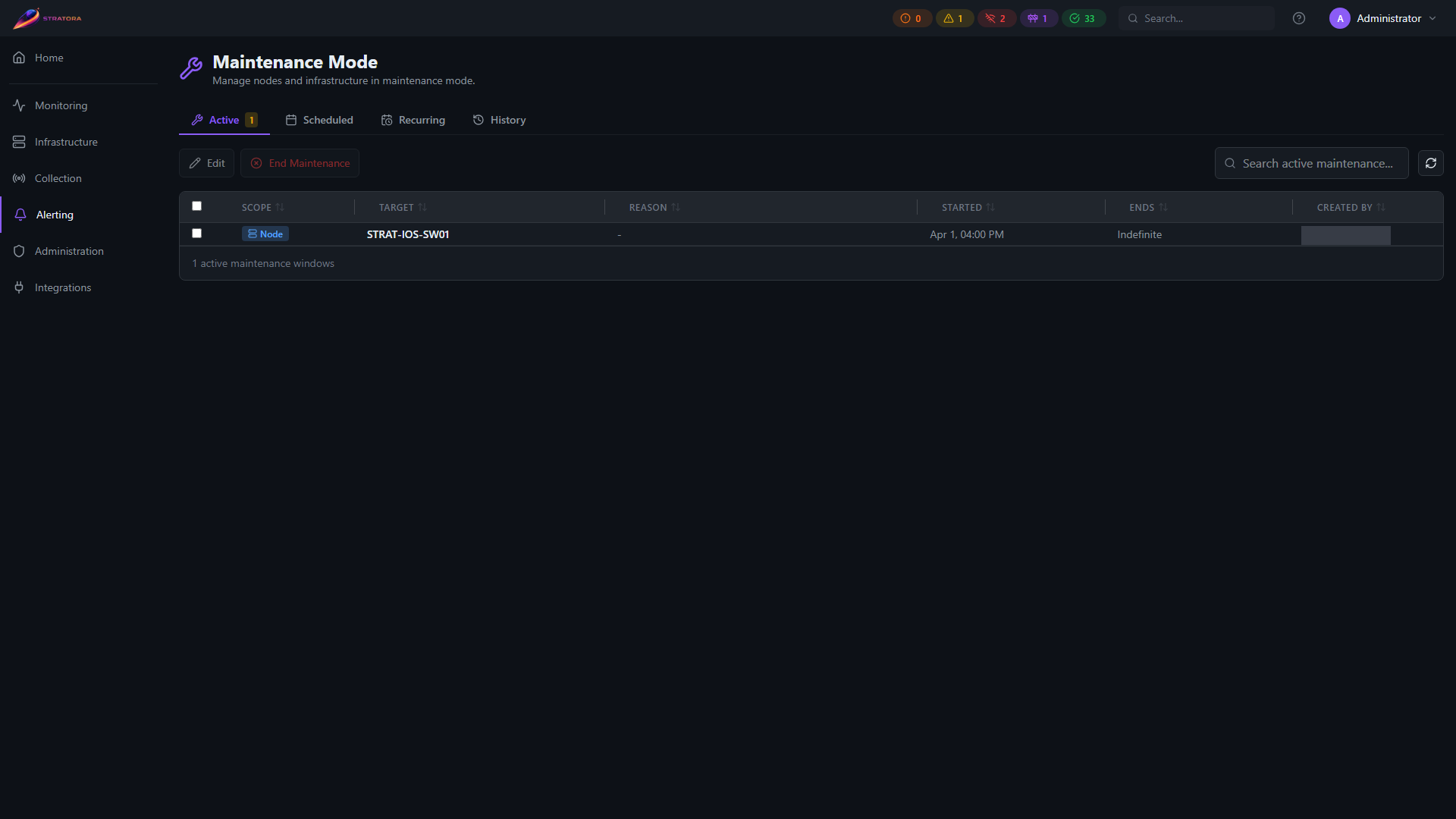
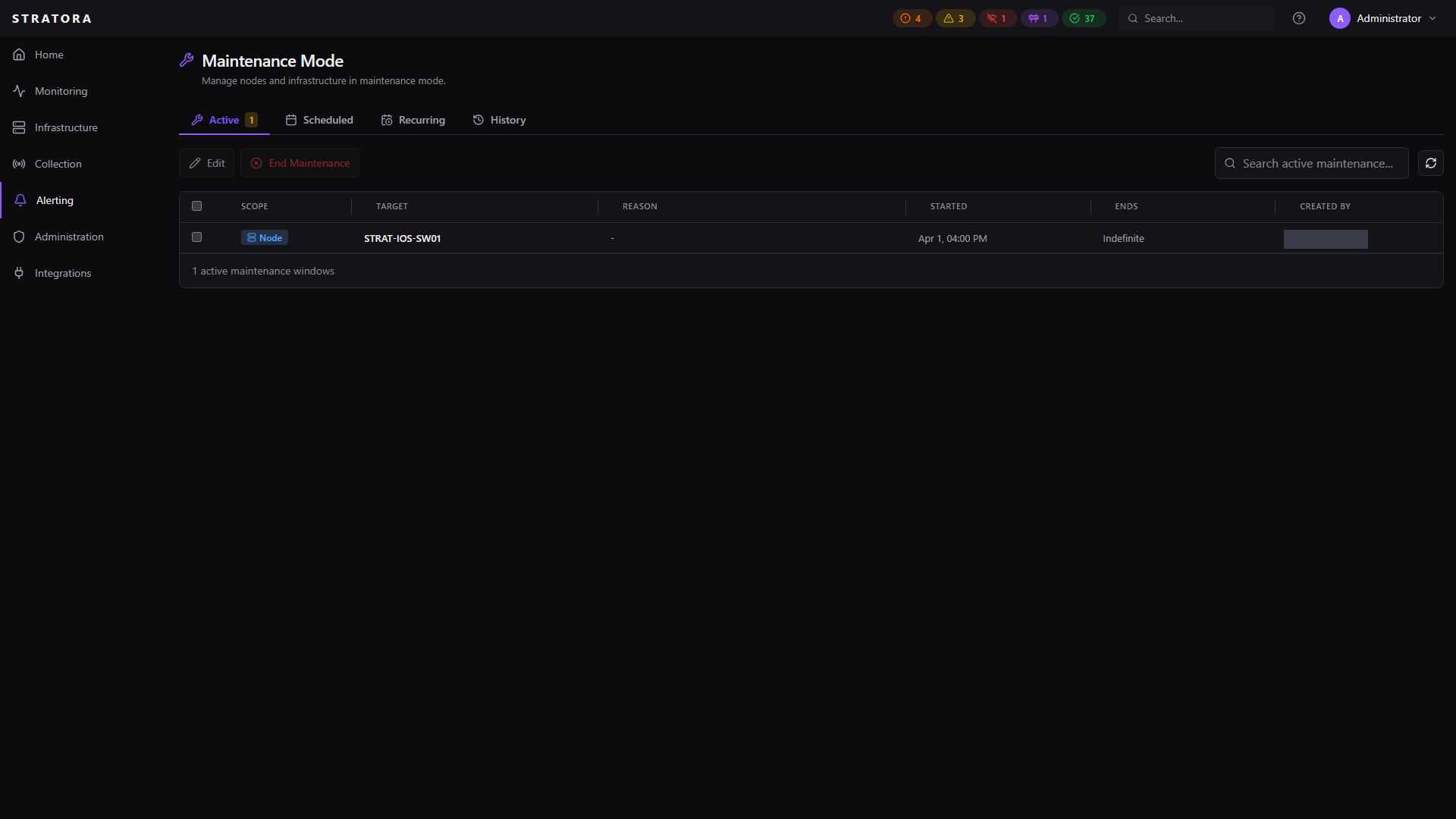
The Maintenance page surfaces four tabs that map to the lifecycle stages of a maintenance window.
Active
Scheduled
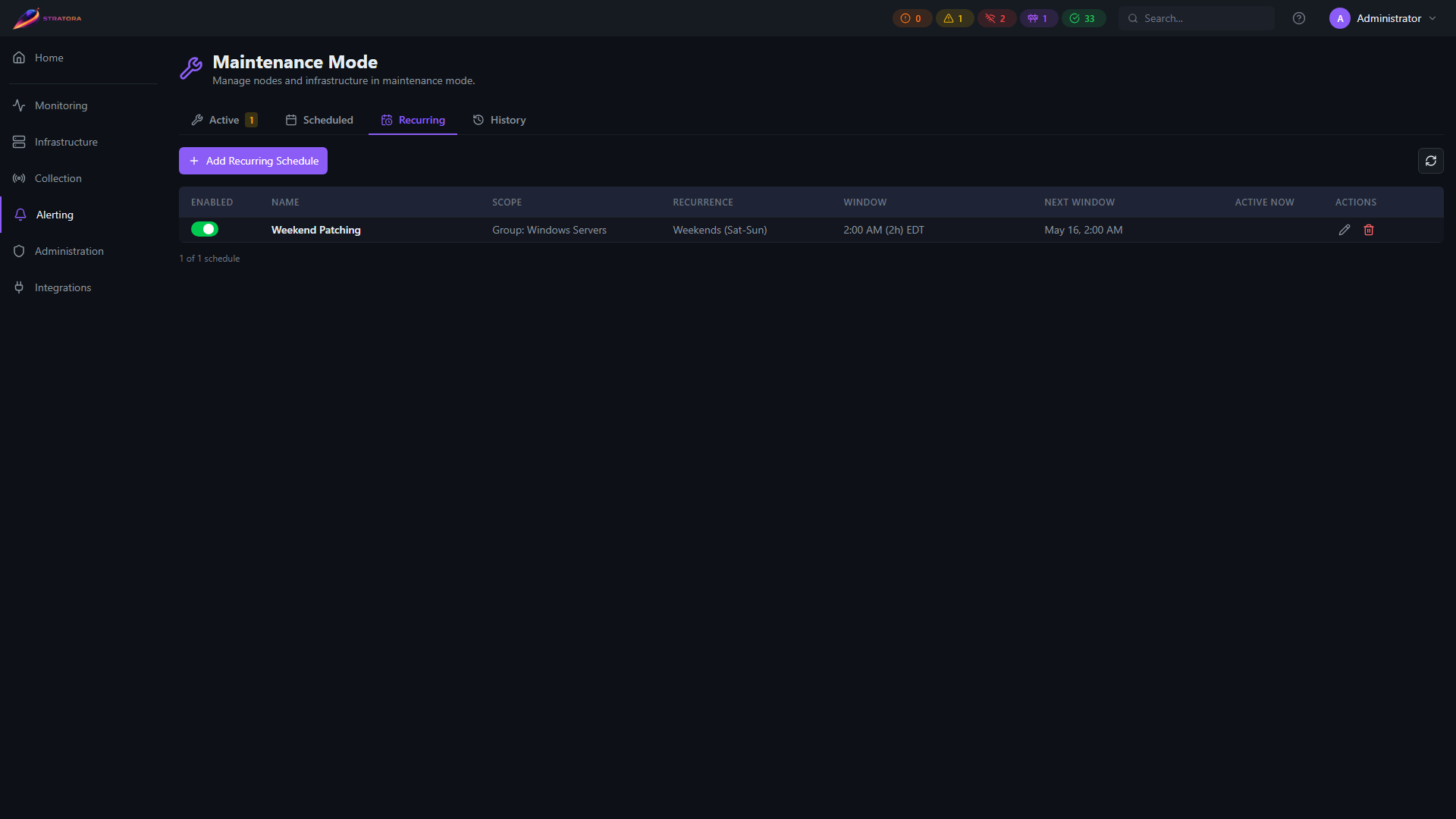
Recurring
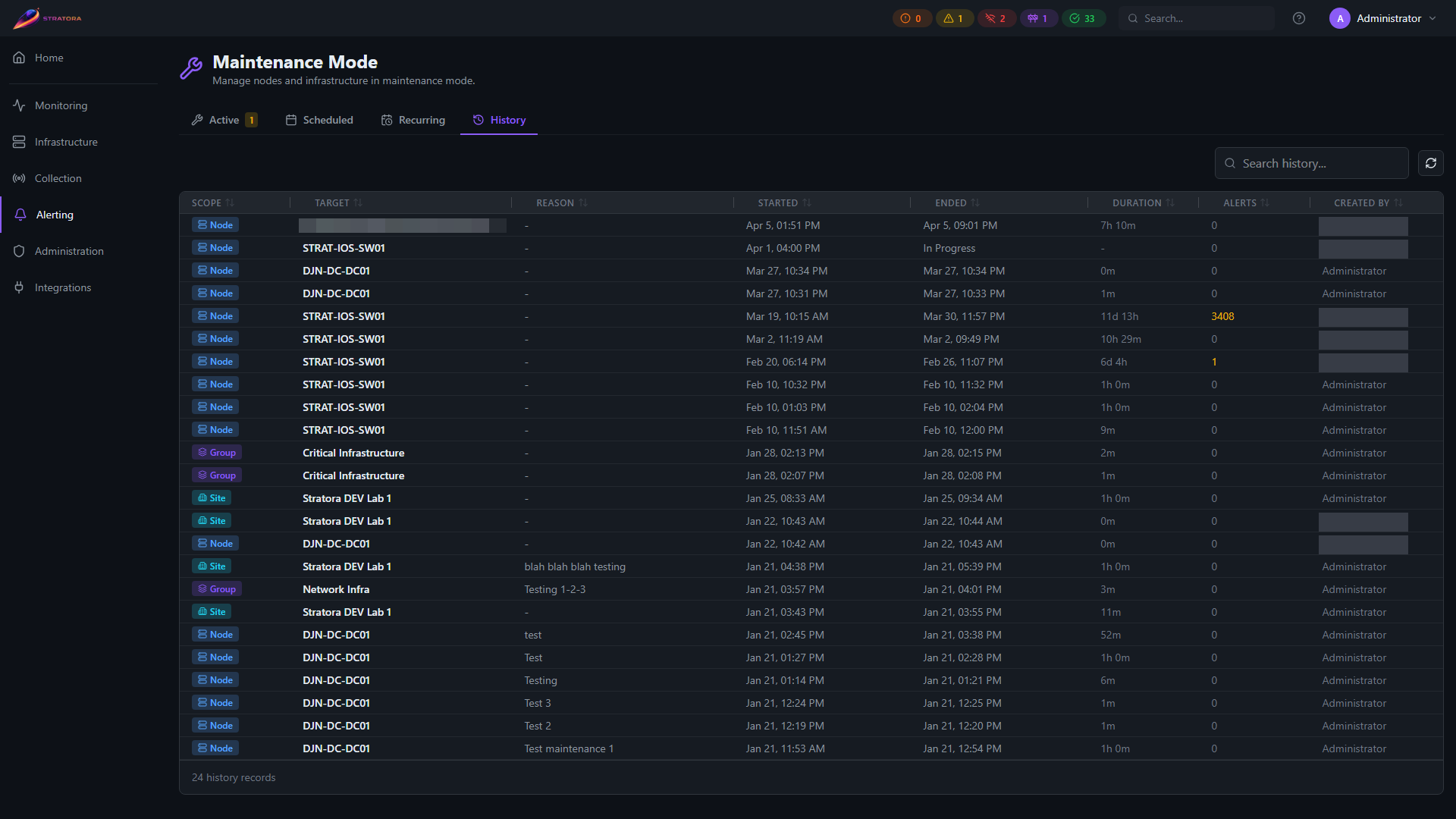
History
Manual Mutes and Scheduled Maintenance Windows
This is the mute mechanism. Use it for one-shot suppression where you want alert artifacts preserved for post-event review.
Manual Mute
An immediate, ad-hoc mute for when you need to silence alerts right now. Navigate to a node, node group, or site and click Mute.
| Field | Required | Description |
|---|---|---|
| Duration | No | How long to mute (leave empty for indefinite — until manually ended) |
| Reason | No | Why the mute was applied |
Manual mutes start immediately and don't require a name or schedule.
Scheduled Maintenance Window
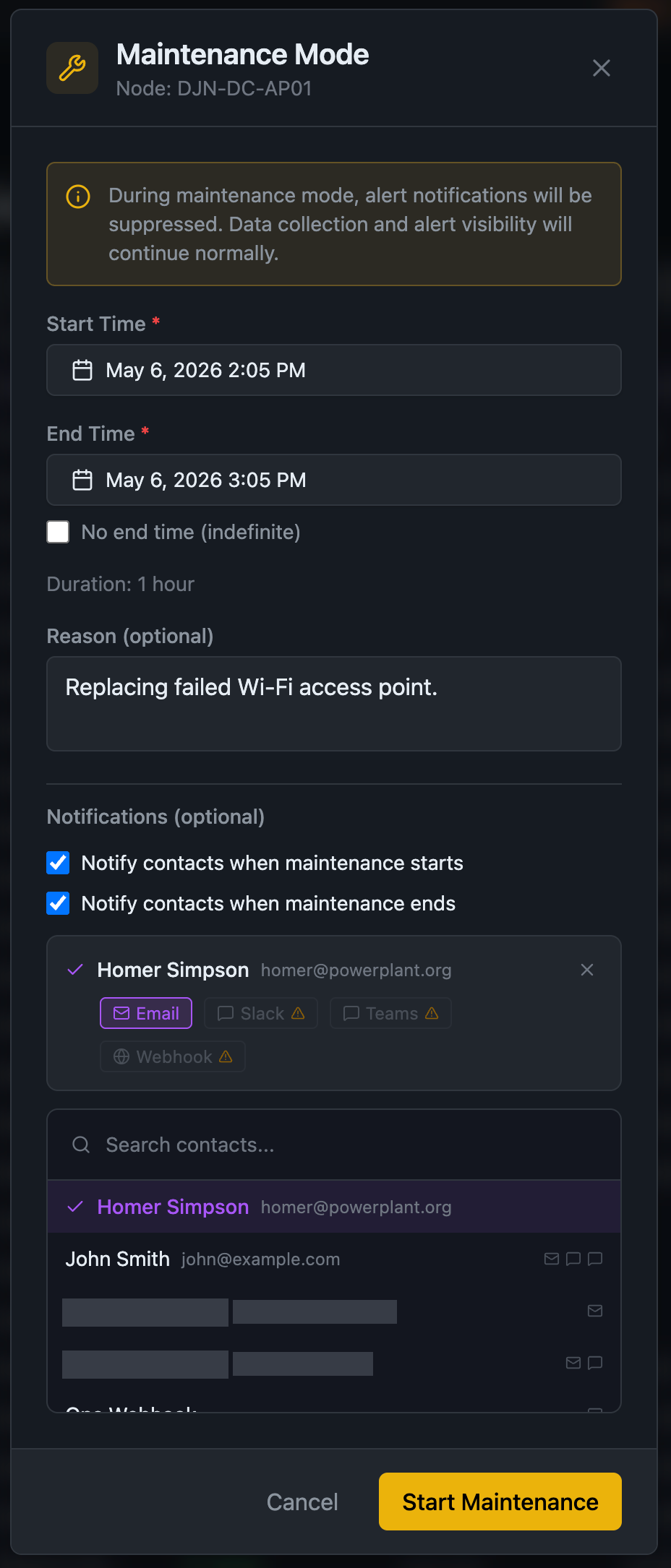
A planned maintenance event with a defined start time. Navigate to Alerting > Maintenance and click New Maintenance Window.
| Field | Required | Description |
|---|---|---|
| Name | Yes | Display name (e.g., "February Patch Tuesday", "UPS battery replacement") |
| Scope | Yes | What to mute — a node, node group, or site |
| Start Time | Yes | When the window begins (can be in the future) |
| End Time | No | When the window ends (leave empty for indefinite) |
| Recurrence | No | Repeating schedule in iCal RRULE format (see Recurrence below) |
| Reason | No | Description of the maintenance activity |
For automated, timezone-aware recurring suppression that drops alerts entirely (rather than muting them), use Recurring Schedules instead.
Quick Mute
For fast, one-click muting, every node has a Mute action available from:
- The node detail view
- The node list (right-click or actions menu)
- The alerts view
Quick mute creates a manual mute with optional duration and reason. No name or schedule required.
You can also bulk mute multiple nodes at once by selecting them in the node list and choosing Actions → Mute.
Recurrence (RRULE on scheduled windows)
Scheduled maintenance windows can repeat on a regular schedule using iCal RRULE format.
Examples:
| Pattern | RRULE |
|---|---|
| Every Tuesday at the same time | FREQ=WEEKLY;BYDAY=TU |
| Second Tuesday of every month | FREQ=MONTHLY;BYDAY=2TU |
| Every 2 weeks on Saturday | FREQ=WEEKLY;INTERVAL=2;BYDAY=SA |
| First Sunday of each quarter | FREQ=MONTHLY;INTERVAL=3;BYDAY=1SU |
For wizard-driven recurring suppression with timezone awareness, use Recurring Schedules instead — they have different behavior, not just a different UI.
How Mutes Suppress Alerts
During a manual mute or scheduled maintenance window, the alert evaluator still runs its normal 10-second cycle. When it detects a condition that would normally fire an alert:
- The alert is created in the database with its normal severity and details
- The alert is marked as muted and linked to the mute or maintenance window
- The suppressed alert count on the window is incremented
- The escalation engine skips the muted alert — no notifications are sent
This means you don't lose visibility into what happened during maintenance. After the window ends, you can review which alerts were muted and investigate any that remain active.
Nodes in maintenance display a Maintenance health status badge. This makes it clear in dashboards and node lists that alerts are being suppressed intentionally.
Ending Manual Mutes and Scheduled Windows
Manual mutes and scheduled maintenance windows end automatically when their end time is reached. The system checks for expired windows every 1 minute and:
- Closes the mute or maintenance window
- Records the end time and reason ("auto-ended") in the maintenance history
- Unmutes all affected alerts — they return to active state and the escalation engine resumes dispatch on its next cycle. If the underlying condition has cleared during the window, the alert resolves naturally; if the condition is still firing, notifications begin again from the existing escalation step.
You can also end a window early by clicking End Now from its detail view.
For indefinite mutes (no end time), you must end them manually.
Recurring Schedules
Recurring schedules let you define time windows that repeat on a regular cadence — daily, weekly, monthly, or a custom pattern. They are managed from the Recurring tab on the Maintenance page.
How Recurring Schedules Suppress Alerts
This mechanism is not a mute. The behavior is materially different from manual mutes and scheduled maintenance windows:
- New alerts are silently dropped. During an active recurring window, the alert evaluator detects conditions on covered nodes but does not create an
alertsrow. There is no alert artifact to review afterward, no entry in the alerts list, and the suppressed alert count is not incremented (because no alert exists to count). - Alerts already firing when the window opens are suppressed and their escalations cancelled. When a recurring window becomes active, any active alerts on covered nodes transition to a
suppressedstate, and any in-flight escalations are cancelled. They disappear from the default alerts dashboard. - No notifications dispatch on any channel.
When the recurring window ends:
- Suppressed alerts are resolved — they do not return to active. If the underlying condition is still firing, the next evaluator cycle creates a fresh alert from scratch and starts a new escalation.
- New alerts begin generating normally on the next evaluator cycle.
Manual mutes and scheduled maintenance windows create alert instances but suppress notifications, leaving an audit trail of what occurred. Recurring schedules go further — they prevent alert instances from being created at all and resolve in-progress alerts at window-open. Both approaches suppress paging; recurring schedules leave no alert artifact to review afterward, which is by design for repeating administrative windows where you don't want a perpetually growing audit trail.
Creating a Recurring Schedule
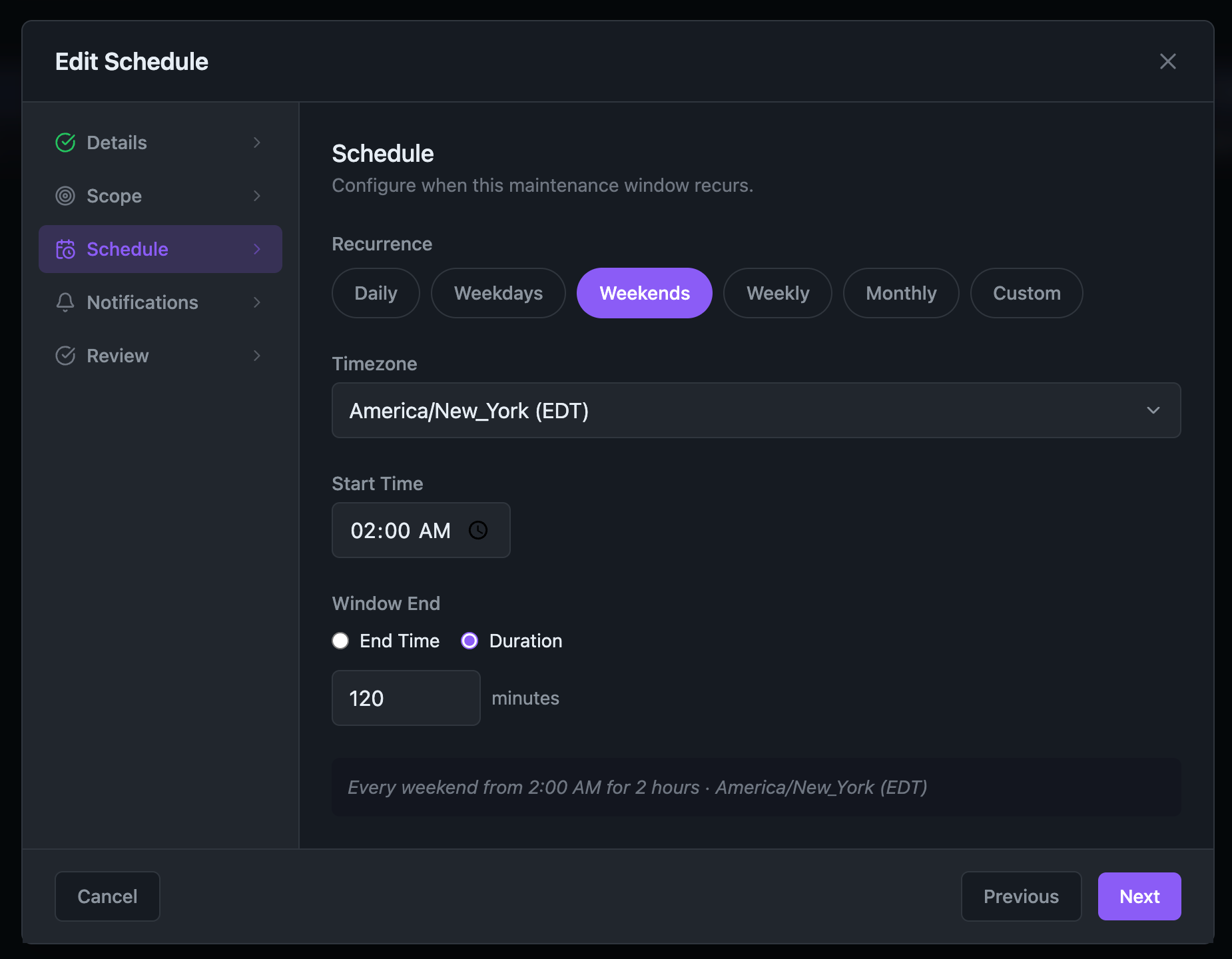
Navigate to Alerting > Maintenance > Recurring tab and click Add Recurring Schedule. The wizard walks you through five steps:
Step 1 — Details
Give the schedule a name and optional description. Use the Enabled toggle to activate or pause the schedule without deleting it.
Step 2 — Scope
Choose which nodes this window applies to:
| Scope | Coverage |
|---|---|
| Global | All nodes in your environment |
| Site | All nodes assigned to a specific site |
| Node Group | All nodes in a specific group or tag |
| Node | One or more specific nodes |
For node scope, use the transfer list to move nodes from Available to Selected. You can search within either column and add or remove nodes at any time by editing the schedule.
Step 3 — Schedule
Configure when the window recurs:
Recurrence presets
- Daily — every day
- Weekdays — Monday through Friday
- Weekends — Saturday and Sunday
- Weekly — one or more specific days of the week
- Monthly — one specific day of the month (1-31)
- Custom — any combination of days
Timing
- Select your timezone — Stratora evaluates the window in the timezone you choose, so a 2:00 AM window always fires at 2:00 AM local time regardless of daylight saving changes.
- Set a start time and either an end time or a duration.
- Overnight windows are supported — a window starting at 11:00 PM and ending at 2:00 AM will correctly span midnight.
The preview at the bottom of the step shows a plain-English summary of your configuration as you build it.
Step 4 — Notifications
Stratora can notify your team when a maintenance window starts and ends, so on-call engineers know alert suppression is active.
- Notify on start — sends a notification when the window becomes active
- Notify on end — sends a notification when monitoring resumes
- Select which channels to use: Email, Slack, Teams, or Webhook
Only channels you have configured under Integrations will appear.
Step 5 — Review
Confirm your settings and click Save Schedule. The schedule appears in the Recurring tab and takes effect immediately if the current time falls within an active window.
Managing Recurring Schedules
From the Recurring tab you can:
- Enable/disable a schedule with the toggle in the Enabled column
- Edit any schedule to change scope, timing, or notifications
- Delete a schedule to remove it permanently
The Active Now badge in the table shows which schedules currently have an open window. The Next Window column shows when the next occurrence starts.
Conflict Resolution
If a node matches more than one active schedule simultaneously, suppression wins — the node's alerts are suppressed as long as any matching schedule is active.
Recurring schedules and one-time maintenance windows work independently. A node is suppressed if it is covered by either a recurring schedule or a one-time window that is currently active.
Timezone Guidance
Always set the timezone to match the location or team responsible for the maintenance window — not necessarily the server's timezone. Stratora stores all window times in the selected timezone and handles daylight saving transitions automatically.
If you manage sites across multiple regions, create separate schedules per timezone rather than trying to offset times manually.
Common to Both Mechanisms
The following behaviors apply to manual mutes, scheduled maintenance windows, and recurring schedules alike.
Scoping
Every maintenance window or manual mute targets a specific scope.
| Scope | Effect |
|---|---|
| Node | Suppresses alerts on a single node |
| Node Group | Suppresses alerts on all nodes in the group |
| Site | Suppresses alerts on all nodes in the site |
Recurring schedules add a fourth option:
| Scope | Effect |
|---|---|
| Global | Suppresses alerts on every node in the environment |
Scope Inheritance
Mutes cascade down through the hierarchy. When a site is muted, every node in that site is effectively muted — even if the node doesn't have its own direct mute.
The system checks for muting in this order:
- Direct node mute — is the specific node muted?
- Node group mute — is the node a member of a muted group?
- Site mute — does the node belong to a muted site?
If any level matches, the node's alerts are suppressed. The mute source (direct, node group, or site) is displayed in the UI so you can see why a node is muted.
Maintenance History
Every maintenance event is recorded in the maintenance history for auditing and review.
Each history entry includes:
| Field | Description |
|---|---|
| Scope | What was muted (node, group, or site name) |
| Type | Manual mute or scheduled maintenance |
| Reason | The stated reason for maintenance |
| Started At | When the window became active |
| Ended At | When the window closed |
| Ended By | Who ended it (or "auto-ended" if it expired) |
| Alerts Suppressed | Count of alerts that were silenced during the window |
View maintenance history from Alerting → Maintenance → History.
Maintenance in Node Views
When a node is in maintenance (directly or via group/site inheritance), the node detail view shows:
- Maintenance badge on the health status
- Mute source — whether the mute is direct, from a node group, or from a site
- Mute source name — the group or site name if inherited
- Mute type — manual or scheduled maintenance
- Ends at — when the mute expires (or "indefinite")
Mechanism Comparison
| Behavior | Manual Mute / Scheduled Maintenance Window | Recurring Schedule |
|---|---|---|
| Alert created in DB during window | Yes, marked muted | No — silently dropped |
| Visible in alerts list during window | Yes (with muted badge) | No |
| Suppressed alert count incremented | Yes | No |
| Alerts already firing at window open | Stay active, marked muted | Transition to suppressed; escalations cancelled |
| Notifications during window | Suppressed | Suppressed |
| At window close — alerts | Unmuted; resume escalation from current step | Resolved; fresh alerts created on next eval cycle if condition persists |
| Audit artifact post-window | Full alert history with muted timeline | None — by design |
| Best for | One-time events where post-event review matters | Repeating administrative windows where audit noise is undesirable |