Node Groups
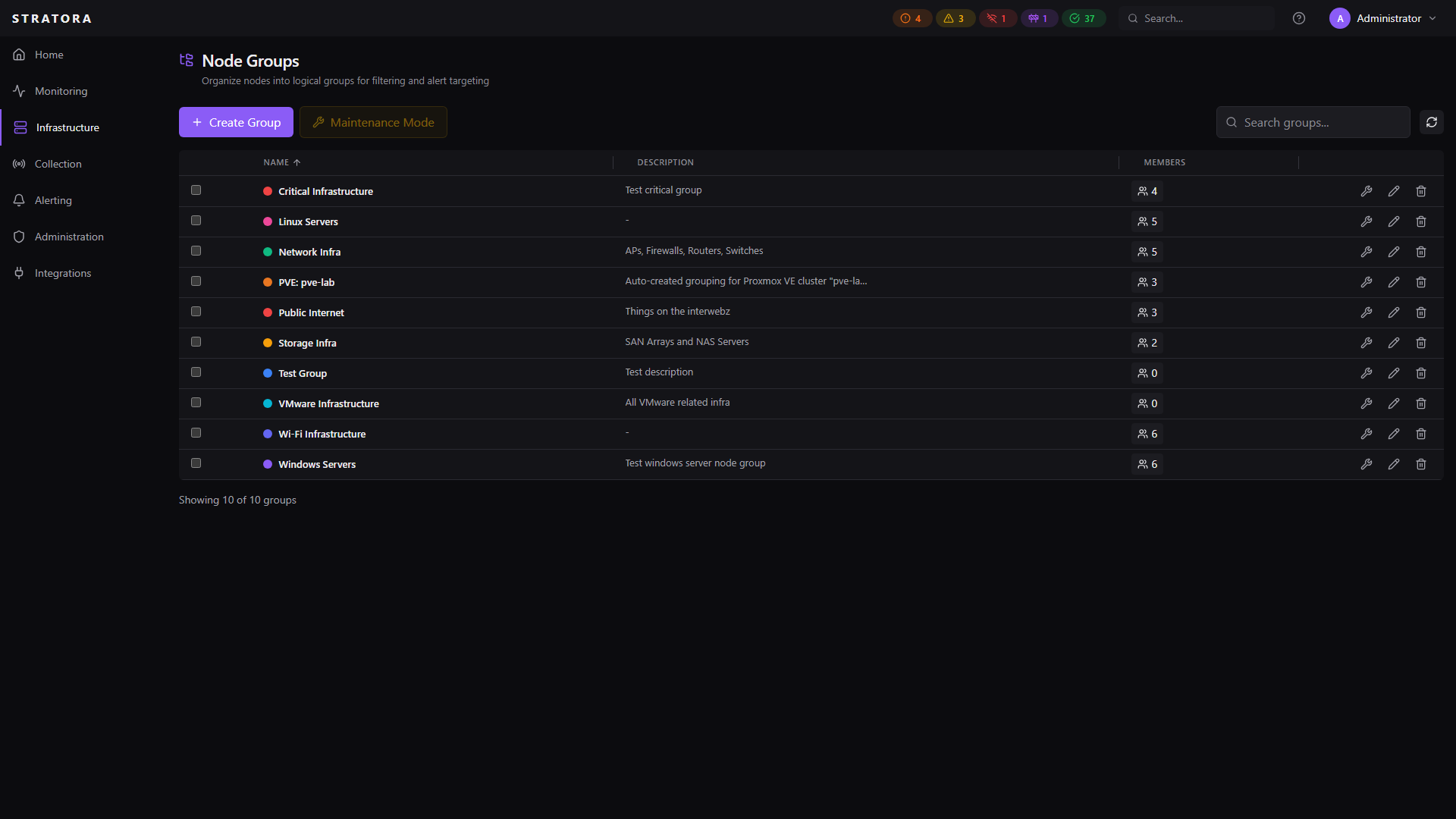
Node groups are color-coded labels you can apply to nodes for organization, filtering, and scoping. A node can belong to multiple groups, and a group can contain any mix of node types.
Groups are flexible — use them however fits your environment:
- By function: "Production Switches", "Domain Controllers", "SQL Servers"
- By owner: "Network Team", "Application Team", "Managed by MSP"
- By priority: "Business Critical", "Tier 2", "Lab Equipment"
- By project: "Migration Phase 1", "New Office Buildout"
Creating a Group
Navigate to Infrastructure → Node Groups and click Add Group.
| Field | Required | Description |
|---|---|---|
| Name | Yes | Unique display name for the group |
| Description | No | Notes about the group's purpose |
| Color | Yes | Hex color code for the group badge (e.g., #22C55E) |
Each group gets a colored badge that appears next to nodes in lists, detail views, and dashboards — making it easy to visually identify group membership at a glance.
Managing Group Members
Adding Nodes to a Group
From the group detail view, click Add Members and select the nodes you want to include. You can search and filter by name, IP, site, or node type.
Removing Nodes
Select nodes within the group and click Remove to take them out. Removing a node from a group does not affect monitoring — it only changes the organizational tag.
Replacing Members
You can also replace the entire member list at once — useful when you want to redefine a group's membership in bulk.
A single node can belong to multiple groups simultaneously. For example, a server could be in both "Production Servers" and "SQL Servers" at the same time.
How Groups Are Used
Filtering
Most list views in Stratora support filtering by node group:
- Node list — filter to show only nodes in a specific group
- Alert list — see alerts for nodes in a group
- Dashboards — scope views to a group of related devices
Scoping Alerts
Node groups give you a natural way to target alert definitions and escalation policies. Rather than configuring alerts node-by-node, you can define rules that apply to all nodes in a group. When you add a new node to the group, it automatically inherits those alert rules.
Dashboard Views
Group-based filtering on dashboards lets you build focused views — for example, a "Network Infrastructure" dashboard that shows only nodes in your switch and firewall groups, or a "Critical Servers" dashboard scoped to your highest-priority group.
Maintenance
When scheduling maintenance, you can use group filtering to quickly select all the nodes that will be affected — for example, selecting every node in the "Building 7" group before a planned power outage.
Groups vs. Sites
Groups and sites serve different purposes:
| Sites | Node Groups | |
|---|---|---|
| Purpose | Physical/logical location | Flexible tagging |
| Required | Yes — every node must have a site | No — groups are optional |
| Membership | One site per node | Multiple groups per node |
| Affects collection | Yes — determines preferred collector | No — purely organizational |
| Example | "HQ Data Center", "Branch Office" | "Production Switches", "Business Critical" |
Use sites for where a node is. Use groups for what a node is or who manages it.