Identity Providers
Stratora supports three authentication methods — local accounts, LDAP / Active Directory, and OIDC single sign-on. You can use any combination: local accounts for service or break-glass access, LDAP for on-prem directory integration, and OIDC for cloud-based SSO.
Local Authentication
Every Stratora installation starts with a built-in admin account. Local accounts authenticate with a username and password stored directly in Stratora.
- Passwords are hashed with bcrypt (cost factor 12) — plaintext passwords are never stored
- Minimum password length: 8 characters
- The default admin account is set to require a password change on first login
Local accounts are managed in Users. For directory-integrated environments, local accounts are typically reserved for emergency or service access.
LDAP / Active Directory
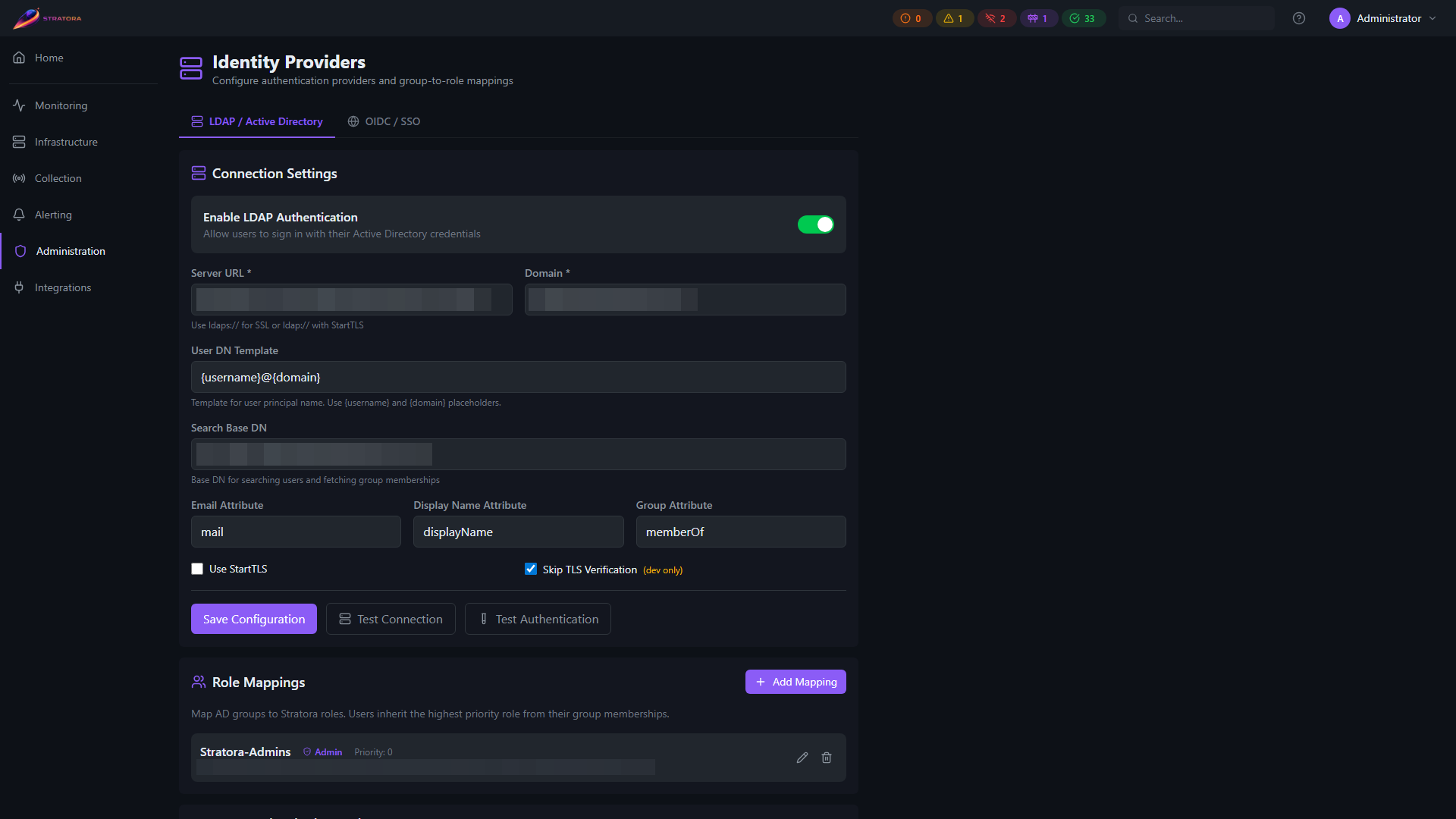
Stratora integrates with LDAP-compatible directories, including Microsoft Active Directory, for centralized authentication. Users sign in with their directory credentials — Stratora never stores their password.
How It Works
- User enters their username and password on the Stratora login page
- Stratora binds to the directory server using the entered credentials (user principal name format:
username@domain) - If the bind succeeds, Stratora fetches the user's email, display name, and group memberships from the directory
- The user's Stratora role is determined by matching their directory group memberships against the configured role mappings
- A local Stratora user record is created or updated automatically — see Automatic Provisioning
Directory credentials are used only for the LDAP bind and are immediately discarded. They are never stored in Stratora's database.
Configuration
Navigate to Administration → Identity Providers → LDAP to configure the connection.
| Field | Required | Description |
|---|---|---|
| Server URL | Yes | LDAP server address — ldap://host:389 or ldaps://host:636 |
| Domain | Yes | Active Directory domain (e.g., corp.example.com) |
| Search Base DN | No | Base DN for user and group searches (e.g., DC=corp,DC=example,DC=com) |
| Use StartTLS | No | Upgrade an LDAP connection to TLS (for ldap:// connections) |
| Skip TLS Verify | No | Skip certificate validation (for self-signed certificates in lab environments) |
| Email Attribute | No | LDAP attribute for email (default: mail) |
| Display Name Attribute | No | LDAP attribute for display name (default: displayName) |
| Group Attribute | No | LDAP attribute for group memberships (default: memberOf) |
| Phone Attribute | No | LDAP attribute for the contact's primary phone (default: telephoneNumber). Populated into the contact's Phone field on sync. |
| Mobile Attribute | No | LDAP attribute for the contact's mobile phone (default: mobile). Populated into the contact's Mobile field on sync. Configure separately from Phone Attribute when your directory carries both. |
| Enabled | Yes | Master toggle to enable or disable LDAP authentication |
If you don't configure a Search Base DN, Stratora can still authenticate users via LDAP bind, but it won't be able to fetch email, display name, or group memberships. Configure the search base for full directory integration.
Testing the Connection
Use the Test Connection button to verify that Stratora can reach the directory server. Use Test Authentication to perform a full login test with a real username and password — this also shows which groups were found and what role would be mapped.
Group-to-Role Mapping
Map Active Directory security groups to Stratora roles. Navigate to the Role Mappings section of the LDAP configuration.
| Field | Description |
|---|---|
| AD Group DN | Full distinguished name of the security group |
| Group Name | Friendly display name (optional) |
| Role | The Stratora role to assign: Admin, Operator, or Viewer |
| Priority | Numeric priority — higher numbers take precedence when a user belongs to multiple mapped groups |
If a user belongs to multiple mapped groups, the mapping with the highest priority wins. If no groups match, the user is assigned the Viewer role by default.
Roles are re-evaluated on every login, so changes to group memberships in Active Directory take effect the next time the user signs in.
OIDC Single Sign-On
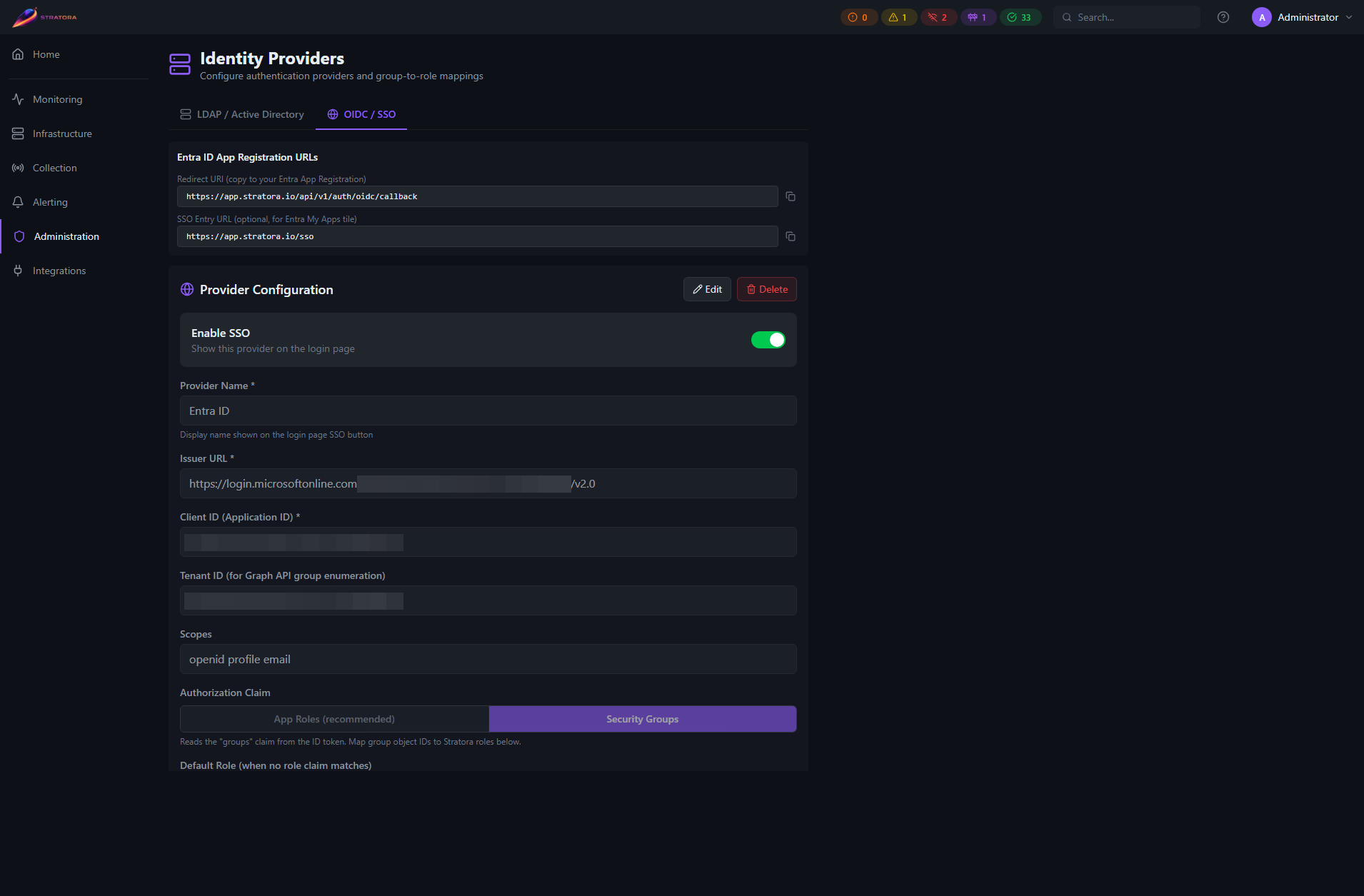
Stratora supports OpenID Connect (OIDC) for single sign-on with cloud identity providers. It has been validated with Microsoft Entra ID (Azure AD) and follows the standard Authorization Code flow with PKCE.
How It Works
- User clicks the SSO provider button on the Stratora login page
- Stratora redirects the browser to the identity provider's authorization endpoint with a PKCE challenge
- User authenticates at the identity provider
- The identity provider redirects back to Stratora with an authorization code
- Stratora exchanges the code (with the PKCE verifier) for tokens
- The ID token is verified using the provider's published signing keys (JWKS)
- User claims (email, name, groups) are extracted and a Stratora session is created
Configuration
Navigate to Administration → Identity Providers → OIDC to add a provider.
| Field | Required | Description |
|---|---|---|
| Name | Yes | Display name shown on the login page (e.g., "Sign in with Entra") |
| Issuer URL | Yes | OIDC discovery URL (the /.well-known/openid-configuration endpoint) |
| Client ID | Yes | Application (client) ID from your identity provider |
| Client Secret | No | Client secret (encrypted at rest with AES-256-GCM) |
| Scopes | No | OIDC scopes to request (default: openid profile email) |
| Auto-Provision | No | Automatically create Stratora users on first SSO login (default: yes) |
| Default Role | No | Role for users when no group mapping matches (default: Viewer) |
| Enabled | Yes | Master toggle |
Microsoft Entra ID–Specific Fields
| Field | Description |
|---|---|
| Tenant ID | Entra tenant ID — enables fetching security groups via Microsoft Graph API |
| Group Claim | Token claim containing group memberships (default: groups) |
| Use Graph API | Use Microsoft Graph API for group membership lookups (recommended when users belong to more than 200 groups) |
Phone-Claim Mapping
Stratora populates a contact's Phone and Mobile fields from claims returned by the OIDC ID token or, when Use Graph API is enabled, from Microsoft Graph user attributes. These targets are configurable so the same Stratora installation can integrate with directories that surface phone data on different claims.
| Field | Description |
|---|---|
| Phone Claim Target | Stratora contact field that the standard OIDC phone_number claim is populated into (default: phone). Set to mobile if your IdP returns a single mobile number on the standard phone claim. |
| Graph Mobile Target | Stratora contact field that Microsoft Graph's mobilePhone attribute is populated into when Graph lookups are enabled (default: mobile). |
| Graph Business Phone Target | Stratora contact field that Microsoft Graph's businessPhones[0] attribute is populated into when Graph lookups are enabled (default: phone). |
When the Graph API is not in use, only Phone Claim Target applies; the Graph targets are ignored.
For information about how managed-contact phone fields can be locally overridden after the initial sync, see Local field overrides on managed contacts.
SP-Initiated Login
The standard login flow: the user starts at the Stratora login page and clicks the SSO provider button. Stratora initiates the OIDC authorization request.
IdP-Initiated Login
Configure a Home page URL in your identity provider pointing to https://your-stratora-server/sso. When a user clicks the Stratora app tile in their identity provider's portal:
- If exactly one OIDC provider is configured, Stratora automatically starts the login flow
- If multiple providers are configured, the user is shown the login page to choose
Group-to-Role Mapping
Map identity provider groups to Stratora roles, similar to LDAP. Navigate to the Role Mappings section of the OIDC provider configuration.
| Field | Description |
|---|---|
| Group ID | Group object ID from your identity provider |
| Group Name | Friendly display name (optional) |
| Role | Admin, Operator, or Viewer |
| Priority | Higher numbers take precedence for multi-group users |
Use the Fetch Groups button to retrieve available security groups directly from your Entra ID tenant (requires Group.Read.All permission on the app registration).
Testing
Use Test Connection to verify that the issuer URL's discovery document is reachable and valid.
Automatic Provisioning
Both LDAP and OIDC create and update Stratora user accounts automatically.
LDAP Provisioning
- On first successful LDAP login, a Stratora user is created with the directory username, email, display name, and mapped role
- On subsequent logins, the email, display name, and role are refreshed from the directory
- LDAP-provisioned users have their password managed by Active Directory — they cannot change their password in Stratora
OIDC Provisioning
When auto-provision is enabled (the default):
- Returning user — if a user with the same OIDC subject ID exists, their profile is updated
- Account linking — if a user with the same email exists (e.g., an LDAP-provisioned account), the OIDC identity is linked to the existing account
- New user — a new Stratora user is created with the username from the
preferred_usernameclaim (or email prefix if not available)
When auto-provision is disabled, only users who already have a Stratora account (matched by OIDC subject ID or email) can sign in via SSO. Unrecognized users see an error.
Account linking allows a smooth transition from LDAP to OIDC. If a user already has an LDAP-provisioned account and then signs in via OIDC with the same email, the accounts are merged automatically.
Authentication Priority
When a user signs in with a username and password on the login page:
- Local authentication is attempted first
- If local auth fails (or the user has no local password), LDAP authentication is attempted (if enabled)
- If both fail, the login is rejected
OIDC authentication is always initiated by clicking the SSO provider button — it does not participate in the username/password flow.