License
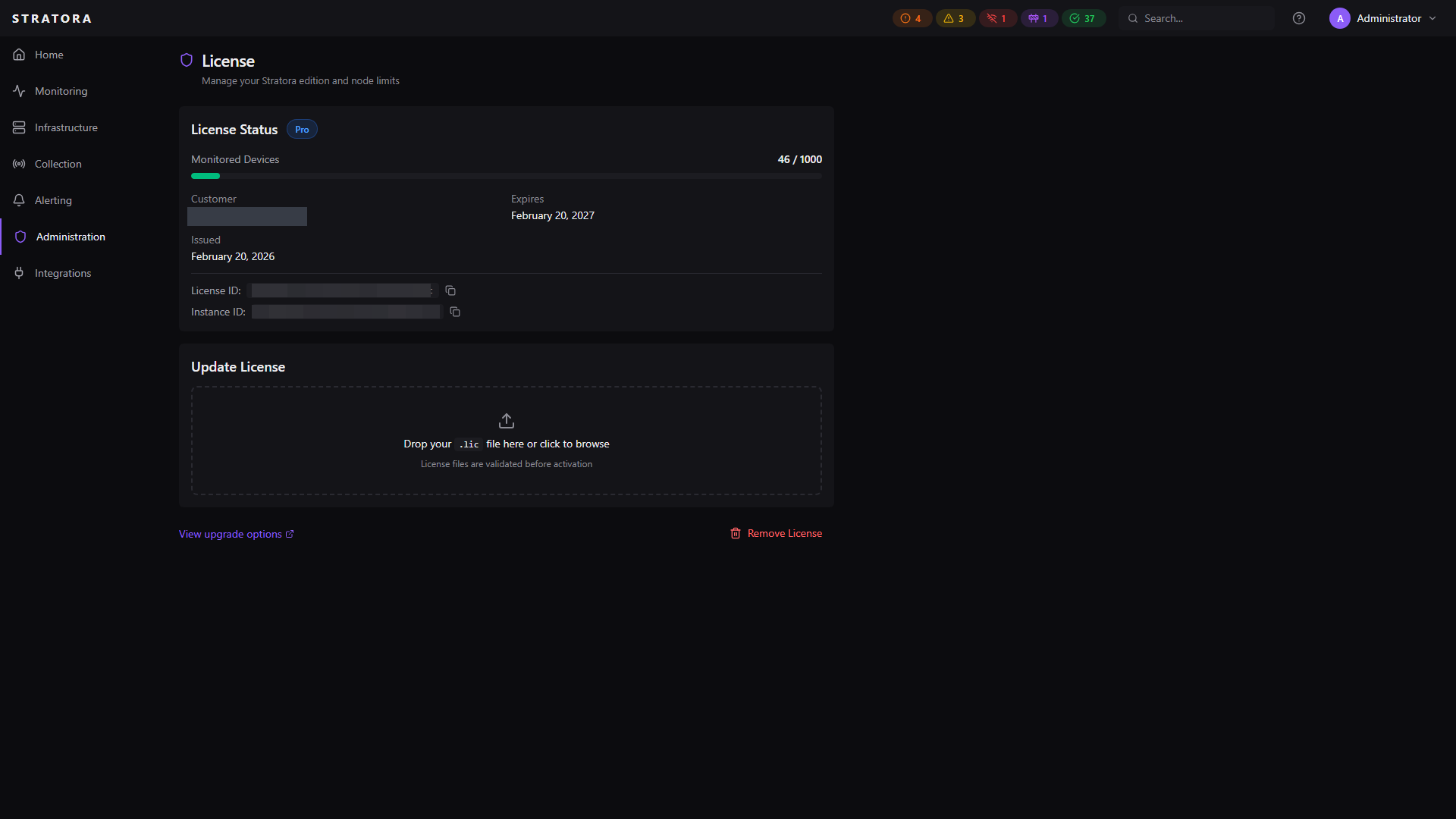
Stratora uses a file-based licensing model with Ed25519 cryptographic signatures for tamper-proof offline validation. No license server or internet connection is required — the license is verified entirely on your Stratora server using a public key embedded in the application.
Editions
| Community | Pro | Enterprise | |
|---|---|---|---|
| Device Limit | 100 | 250+ | Unlimited |
| Price | Free | Per-device subscription | Contact sales |
| All monitoring features | Yes | Yes | Yes |
| Alerting & escalation | Yes | Yes | Yes |
| Dashboards & maps | Yes | Yes | Yes |
| LDAP / OIDC SSO | Yes | Yes | Yes |
| Expansion packs | — | 250 devices each | — |
Community Edition
Every Stratora installation starts as Community Edition with a limit of 100 monitored devices. No license file is required — Community is the default when no license is uploaded.
Pro Edition
Pro starts at 250 devices and can be expanded in increments of 250 with additional expansion packs:
| Configuration | Total Devices |
|---|---|
| Pro base | 250 |
| Pro + 1 expansion | 500 |
| Pro + 2 expansions | 750 |
| Pro + 3 expansions | 1,000 |
Enterprise Edition
Unlimited devices — no device cap is enforced.
What Counts Toward the Device Limit
Only actively monitored nodes count toward your license limit. Specifically, a device counts if it has a record in the node list with an active status.
The following do not count:
- IP addresses discovered by IPAM scanning that haven't been imported as nodes
- Nodes that have been deactivated or removed from monitoring
- Discovery scan results that haven't been imported
- Guest VMs shown in virtualization inventory — the VMs, hosts, and datastores listed on a hypervisor's dashboards are inventory, not nodes; they do not count unless you separately onboard one as its own monitored node
Hypervisors count as the nodes you onboard. Each hypervisor you add is a node and counts once — a vCenter Server Appliance, a Proxmox VE host, or an ESXi host onboarded as a VMware Host node. A complete vSphere setup (the vCenter plus each ESXi host as a VMware Host node) therefore counts as the vCenter node plus one node per ESXi host; the VMs themselves do not count.
The active node count is displayed on the license page alongside your limit so you always know where you stand.
Purchasing and Activating a License
1. Purchase
Purchase a Pro or Enterprise subscription from the Stratora website. You'll receive a license file (.lic) by email.
2. Upload
Navigate to Administration → License and upload the .lic file. You can either:
- Drag and drop the file into the upload area, or
- Click to browse and select the file
3. Validation
Stratora validates the license file instantly:
- Verifies the Ed25519 cryptographic signature against the embedded public key
- Confirms the edition and device limit
- Checks the expiration date
If validation passes, the new license takes effect immediately — no restart required.
4. Confirmation
The license page updates to show your edition, device limit, active node count, and expiration date.
License File
The license file is a signed JSON document containing:
| Field | Description |
|---|---|
| License ID | Unique identifier for support reference |
| Edition | Community, Pro, or Enterprise |
| Device limit | Maximum number of active nodes |
| Customer name | Your organization name |
| Customer email | Contact email associated with the subscription |
| Trial flag | true for time-limited trial licenses, false for paid subscriptions |
| Issued date | When the license was generated |
| Expiration date | When the license expires |
| Signature | Ed25519 cryptographic signature |
The signature covers every field in the file. Any modification — even a single character — will cause validation to fail.
Do not edit the license file. The cryptographic signature validates the exact contents of the file. Modified files will be rejected.
License Validation
License validation is fully offline — Stratora never contacts an external server to check your license.
- The Ed25519 public key is embedded in the Stratora binary at build time
- Validation computes a canonical representation of the license payload and verifies the signature
- The license file is re-validated automatically every hour to detect expiration
- The active node count is refreshed every 30 seconds
Expiration Behavior
When a license expires:
| What Happens | Details |
|---|---|
| Existing monitoring continues | All currently monitored nodes keep collecting data, generating alerts, and sending notifications |
| No new devices | You cannot add new nodes until the license is renewed |
| No data loss | All historical data, dashboards, alerts, and configurations are preserved |
| No service disruption | The Stratora server and all collectors continue running normally |
| UI notification | A banner appears indicating the license has expired |
In short: expiration freezes your device count but never stops monitoring or deletes data.
Renewal
When your subscription renews, you receive a new license file with an updated expiration date. Upload it the same way as the original — the new license replaces the old one and the device count limit is unlocked.
Approaching expiry
When your license is within 30 days of expiring, Stratora displays a blue banner across the top of every page reminding you to renew. The banner shows the number of days remaining and links to the License page where you can upload a renewed license file.
The banner is dismissible per session — closing it hides it until your next browser session, but it will reappear on your next visit until the license is renewed or replaced.
There is no email reminder. The banner is the only proactive notice Stratora provides before expiry.
If you renew your license before the expiry date, upload the new
.lic file on the License page. The new license takes effect
immediately with no service restart.
If your license file is rejected
Stratora verifies your license file when it loads. If the file fails verification — for example, because it was modified after being signed, became corrupted during a backup or restore, or has the wrong format — Stratora rejects the file rather than silently falling back to Community Edition.
What you will see:
- A red banner labeled License file problem at the top of every page.
- An error message on the License page explaining the rejection.
- If you previously had a valid license, your previous license remains in effect. Existing monitoring continues unchanged. New nodes can still be added against the previous license's limit.
- If this is the first time Stratora is starting and there is no previous license, no new nodes can be added until a valid license is uploaded. Existing nodes (if any) continue to be monitored.
What to do:
- Open the License page.
- Re-upload your
.licfile. If the file was corrupted, request a fresh copy from your account portal. - If the rejection persists with a fresh download, contact Stratora support with the rejection reason shown on the License page.
Common causes of rejection:
- The
.licfile was edited after being issued. - The file was corrupted during transfer or storage.
- The file is from a different signing authority (for example, a development or test license used against a production server).
- File system permissions prevent Stratora from reading the file.
A missing license file is not a rejection — Stratora treats no license file as Community Edition and runs at the 100-device cap.
Removing a License
If you need to revert to Community Edition, navigate to Administration → License and click Remove License. This:
- Deletes the license file from the server
- Reverts the edition to Community with a 100-device limit
- Records the change in the audit log
All monitoring continues for devices within the Community limit.
Removing a license while over the Community limit
If you remove your license while you have more than 100 active devices, Stratora reverts to Community Edition with a 100-device limit. Your existing devices continue to be monitored — Stratora does not stop collecting metrics or evaluating alerts. However, you cannot add new devices until your active device count drops below 100, either by deactivating devices or by uploading a new license.
License Page
The license page (Administration → License) shows:
- Current edition — Community, Pro, or Enterprise
- Device limit — maximum allowed nodes
- Active nodes — current count of monitored devices
- Expiration date — when the license expires (with days remaining)
- Trial status — whether this is a trial license
- License ID — unique identifier for support reference