SSL / TLS Certificates
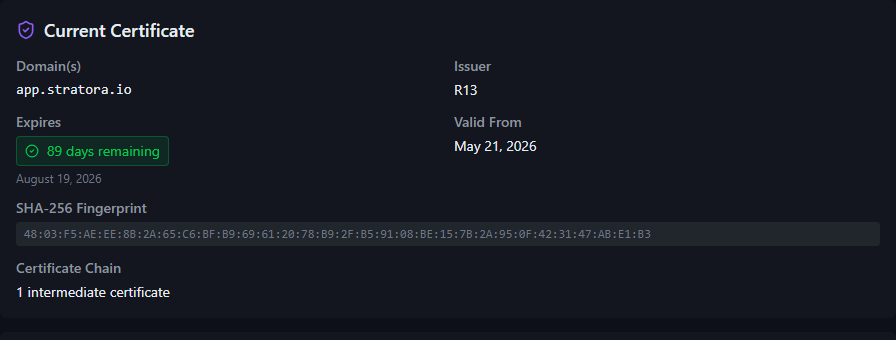
Stratora serves all traffic over HTTPS. On a fresh install, a self-signed certificate is generated automatically — zero configuration required. From there, you can upgrade to a trusted certificate via Let's Encrypt automation or manual upload.
Default Self-Signed Certificate
During installation, Stratora generates a self-signed certificate so HTTPS works immediately:
- Algorithm: ECDSA P-256
- Subject:
Stratora Self-Signed - SANs:
localhost, the server hostname, and any configured external URL - TLS versions: TLS 1.2 and TLS 1.3
The self-signed certificate is suitable for initial setup and internal use. Browsers will show a certificate warning because it isn't signed by a trusted certificate authority.
Let's Encrypt (Automated Certificates)
Stratora includes a bundled ACME client (win-acme) for automated certificate issuance and renewal from Let's Encrypt.
Navigate to Administration → SSL / TLS Certificates to configure.
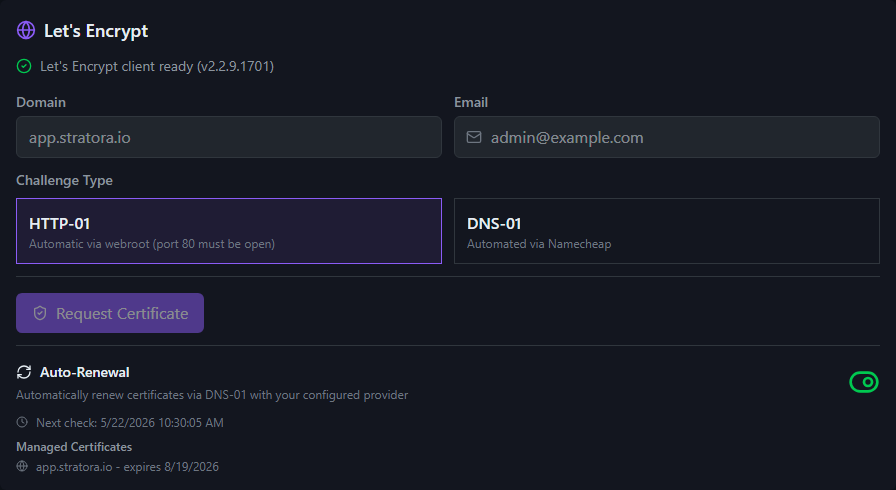
HTTP-01 Challenge
The simplest method — Let's Encrypt verifies domain ownership by placing a file on your web server.
Requirements:
- Port 80 must be reachable from the internet
- The domain's DNS must point to your Stratora server
To issue a certificate:
- Enter your domain name and email address
- Click Issue Certificate
- Stratora handles the challenge automatically — the certificate is deployed within seconds
DNS-01 Challenge
For servers that aren't publicly accessible on port 80, or for wildcard certificates. Let's Encrypt verifies domain ownership via a DNS TXT record.
Manual DNS-01
A two-step process for any DNS provider:
- Click Start Challenge — Stratora generates the required TXT record details
- Create the
_acme-challengeTXT record at your DNS provider - Click Complete Challenge — Stratora verifies the record and issues the certificate
Manual DNS-01 certificates must be renewed manually since the DNS record step requires human intervention. For automated renewal, use a supported DNS provider below.
Automated DNS-01
For fully automated issuance and renewal, configure one of the supported DNS providers. Stratora creates and removes DNS records automatically via the provider's API.
Supported DNS providers:
| Provider | Status | Credentials Required |
|---|---|---|
| Namecheap | Validated | API User, API Key, and Client IP (must be whitelisted in Namecheap dashboard) |
| Cloudflare | Supported | API Token (with Zone:DNS:Edit permission) |
| AWS Route 53 | Supported | Access Key ID, Secret Access Key, and optionally a Hosted Zone ID |
| GoDaddy | Supported | API Key and API Secret |
- Validated — verified end-to-end with a real Let's Encrypt certificate. Namecheap is validated.
- Supported — the integration is implemented and tested, but a live certificate has not been issued through it in every environment. Cloudflare, AWS Route 53, and GoDaddy are Supported; validate in your environment before relying on them in production.
Per-provider notes:
- AWS Route 53 — the AWS CLI is bundled with Stratora, so no separate installation is required. The IAM credentials need Route 53 record-change permissions.
- GoDaddy — requires a GoDaddy account eligible for API access. GoDaddy restricts production API keys to accounts with 10+ domains, a reseller / Discount Domain Club plan, or a paid tier; ineligible accounts receive a clear "not eligible for API access" error.
- Namecheap — requires API access enabled and this server's public IP allowlisted in the Namecheap dashboard.
To set up automated DNS-01:
- Navigate to the DNS Providers section
- Click Add Provider and select your DNS service
- Enter the domain and API credentials
- Use Test Connection to verify — Stratora creates a temporary TXT record, confirms it resolves, and removes it
- Activate the provider
- Click Issue Certificate
DNS provider credentials are encrypted at rest with AES-256-GCM.

Automatic Renewal
Stratora configures a Windows Scheduled Task to check for certificate expiry and renew automatically.
| Detail | Value |
|---|---|
| Task name | Stratora Certificate Renewal |
| Schedule | Daily between 3:00 AM and 7:00 AM (3:00 AM start with up to a 4-hour random delay to spread load on Let's Encrypt) |
| Renewal threshold | 30 days before expiration |
When the task runs, it checks if the current certificate expires within 30 days. If so, it re-issues the certificate using the same method that was used originally (HTTP-01 or automated DNS-01).
You can enable or disable automatic renewal from the SSL / TLS settings page.
Renewal History
Stratora records every renewal attempt — both scheduled and operator-initiated — and surfaces the most recent attempts inline on the SSL / TLS settings page. Each entry shows when the attempt happened, the outcome (success, failure, or skipped), and the error category if the renewal failed. The history is useful both as a daily confirmation that renewals are working and as a diagnostic surface when they aren't.
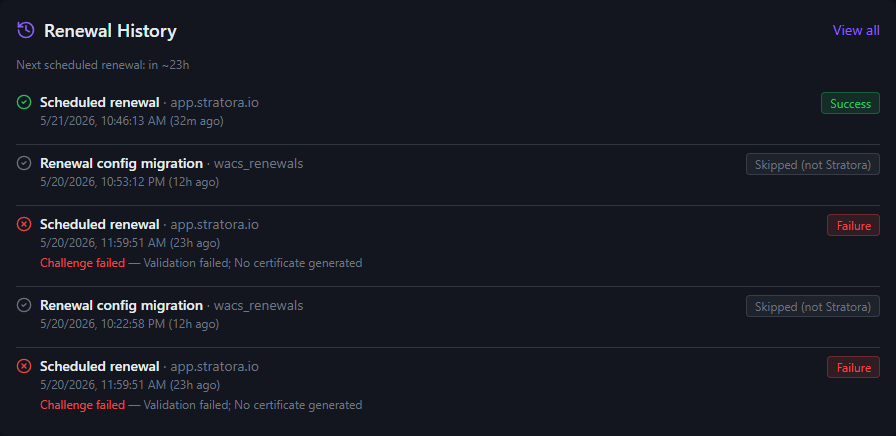
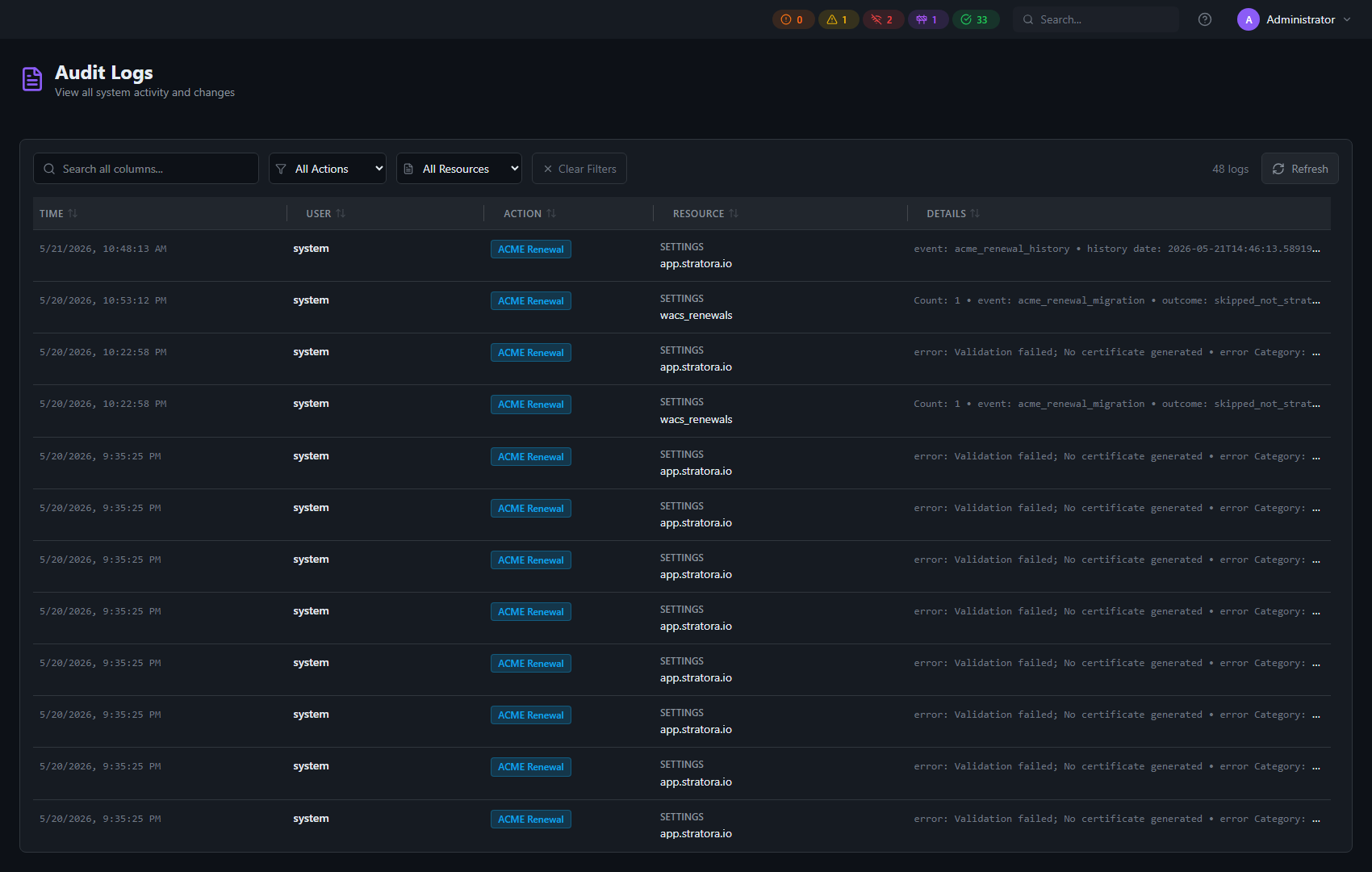
The View all link opens the audit log filtered to renewal events, showing the full history beyond the most-recent five.
Manual Certificate Upload
If you manage certificates externally (purchased from a CA, issued by an internal PKI, etc.), you can upload them directly.
Navigate to Administration → SSL / TLS Certificates and click Upload Certificate.
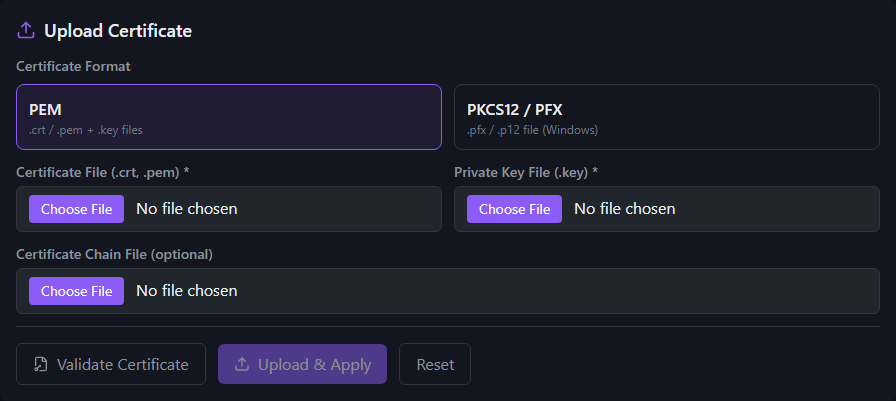
PEM Format
Upload separate files:
| File | Description |
|---|---|
Certificate (.crt, .pem) | Your server certificate |
Private Key (.key, .pem) | The corresponding private key |
| Chain (optional) | Intermediate CA certificates |
Supported key types: RSA (PKCS#1), ECDSA, and PKCS#8.
PKCS12 / PFX Format
Upload a single .pfx or .p12 file containing the certificate and private key. Enter the passphrase if the file is password-protected.
Validation
Before applying a certificate, Stratora validates:
- Key match — the certificate and private key correspond to each other
- Expiration — the certificate is not expired or not-yet-valid
- Chain verification — if a chain is provided, the full trust chain is verified
- Expiry warning — alerts you if the certificate expires within 30 days
If validation fails, the upload is rejected and the current certificate remains in place. If the web server configuration test fails after deployment, Stratora automatically rolls back to the previous certificate.
Certificate Status
The SSL / TLS settings page displays the current certificate details:
| Field | Description |
|---|---|
| Subject | Certificate common name |
| Issuer | Who issued the certificate |
| Valid From / To | Certificate validity period |
| Days Until Expiry | Countdown with color-coded indicator (green > 30 days, yellow 8–30 days, red ≤ 7 days) |
| SANs | Subject Alternative Names (domains and IPs covered) |
| Self-Signed | Whether the certificate is self-signed |
| Chain | Whether intermediate certificates are present |
| SHA-256 Fingerprint | Certificate fingerprint for verification |
Security Headers
Stratora's web server is configured with security headers enabled by default:
| Header | Value |
|---|---|
Strict-Transport-Security | max-age=31536000; includeSubDomains |
X-Frame-Options | DENY |
X-Content-Type-Options | nosniff |
X-XSS-Protection | 1; mode=block |
Referrer-Policy | strict-origin-when-cross-origin |
Content-Security-Policy | default-src 'self'; script-src 'self'; style-src 'self' 'unsafe-inline'; connect-src 'self'; img-src 'self' data: blob:; font-src 'self' data:; frame-ancestors 'none'; base-uri 'self'; form-action 'self'; upgrade-insecure-requests; |