Report Templates
A report template defines the blueprint for a report — what type of report to generate, which sites to include, the time range to analyze, and which sections to show. You run a template to produce a PDF report.
Viewing Templates
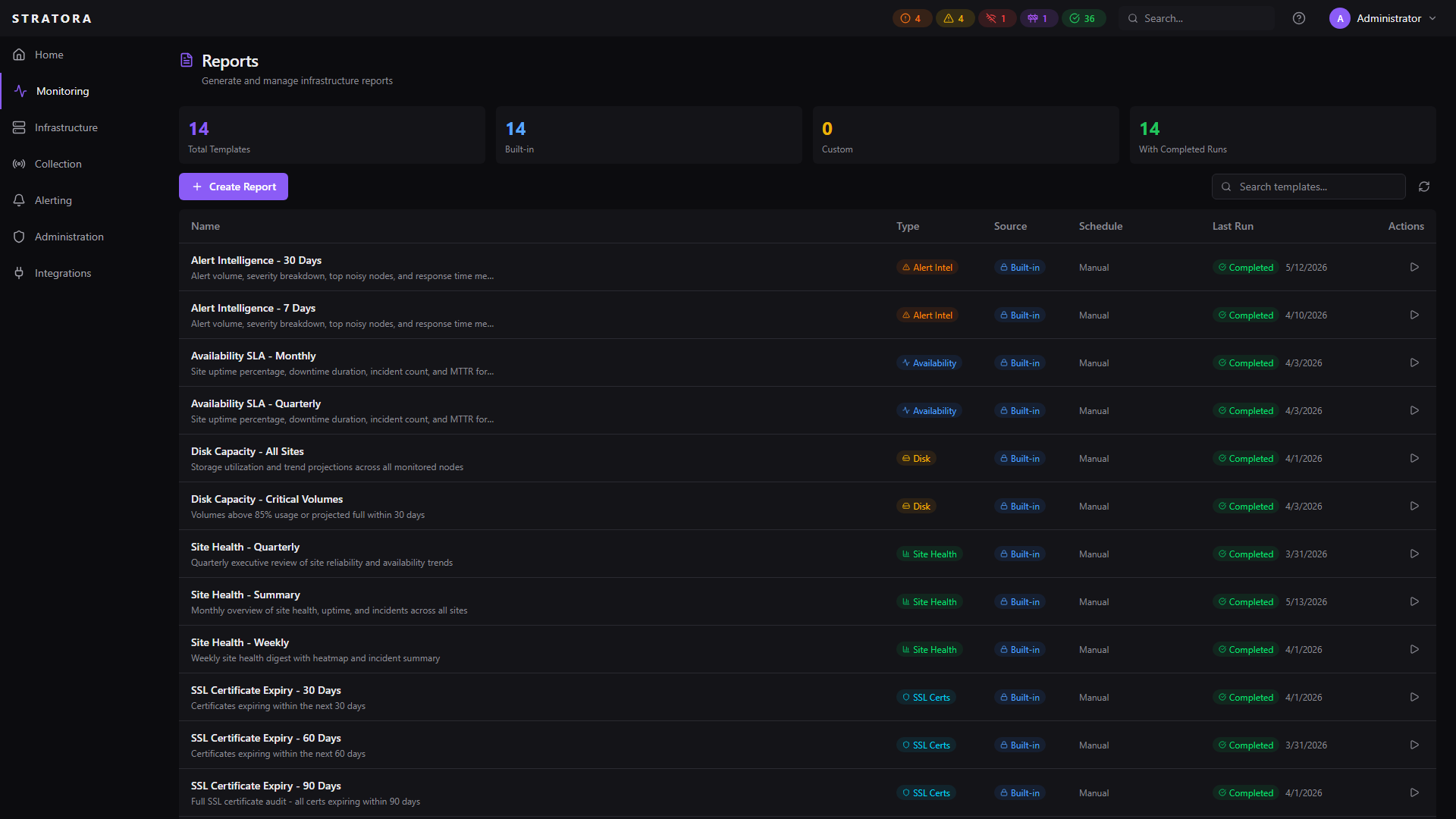
Navigate to Reports in the sidebar to see all available templates. The template list shows both built-in and custom templates.
Each template displays:
| Field | Description |
|---|---|
| Name | Template display name |
| Type | Report type (e.g., Site Health) |
| Source | Built-in or Custom |
| Scope | All sites or specific site names |
| Time Range | Reporting period (7d, 30d, 90d, or 1y) |
| Last Run | When the template was last used to generate a report |
Built-in Templates
Stratora ships built-in templates for all six report types, grouped by reporting cadence. Each template covers all sites by default; create a custom template (see below) to scope to specific sites.
Site Health
| Template | Time Range | Use Case |
|---|---|---|
| Weekly Site Health | 7 days | Weekly digest for regular operational check-ins |
| Site Health Summary | 30 days | Monthly health review across the environment |
| Quarterly Site Health Review | 90 days | Executive review and client presentations |
All Site Health templates include every section listed under Sections.
Disk Capacity
| Template | Time Range | Use Case |
|---|---|---|
| Disk Capacity (30d) | 30 days | Monthly storage trend review and capacity planning |
| Disk Capacity (90d) | 90 days | Quarterly capacity planning with projected full-dates |
SSL Certificate Expiry
| Template | Window | Use Case |
|---|---|---|
| SSL Expiring (30 days) | Next 30 days | Urgent renewals |
| SSL Expiring (60 days) | Next 60 days | Planning window |
| SSL Expiring (90 days) | Next 90 days | Long-lead inventory |
Alert Intelligence
| Template | Time Range | Use Case |
|---|---|---|
| Alert Intelligence (7d) | 7 days | Weekly noise review and ACK-time trend |
| Alert Intelligence (30d) | 30 days | Monthly noisy-node ranking and escalation metrics |
Availability / SLA
| Template | Time Range | Use Case |
|---|---|---|
| Availability (Monthly) | Calendar month | Per-site uptime, downtime, MTTR/MTBF for SLA reporting |
| Availability (Quarterly) | Calendar quarter | Quarterly business review |
Top Offenders
| Template | Time Range | Use Case |
|---|---|---|
| Top Offenders (24h) | Last 24 hours | Daily standup — what's been noisy in the past day |
| Top Offenders (7d) | 7 days | Weekly review of top resource-consuming nodes |
Built-in templates cannot be edited or deleted. If you need a variation — different scope, time range, or sections — create a custom template with your preferred settings.
Creating a Custom Template
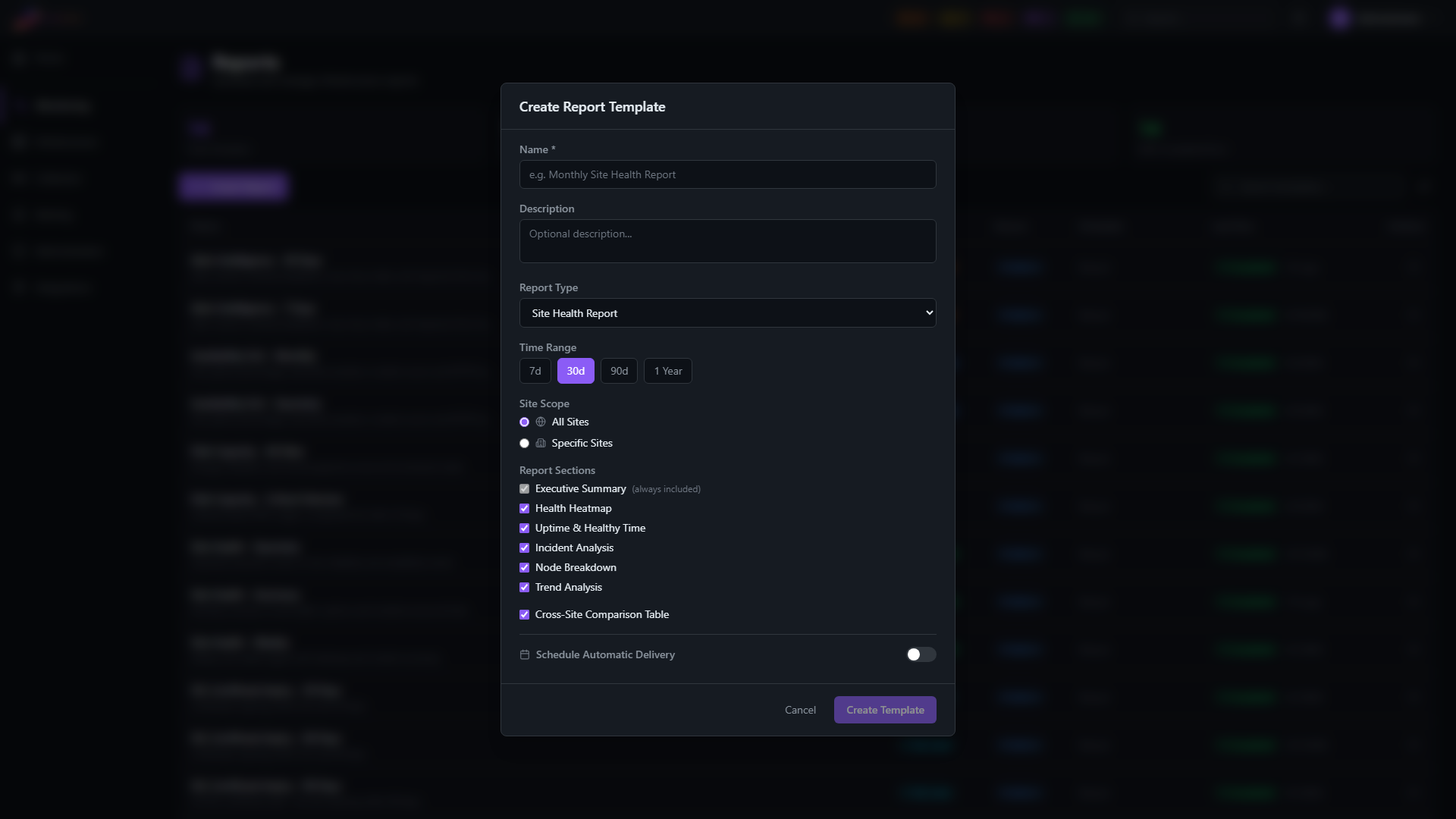
Navigate to Reports and click New Template.
Template Settings
| Field | Required | Description |
|---|---|---|
| Name | Yes | Display name for the template (e.g., "Client ABC Monthly Report") |
| Description | No | Notes about the template's purpose or audience |
| Report Type | Yes | The type of report to generate (Site Health, Disk Capacity, SSL Certificate Expiry, Alert Intelligence, Availability / SLA, or Top Offenders) |
| Site Scope | Yes | All sites or select specific sites to include |
| Time Range | Yes | Reporting period — 7 days, 30 days, 90 days, or 1 year |
Sections
Choose which sections to include in the generated report. Each section adds specific analysis to the PDF:
| Section | Description |
|---|---|
| Executive Summary | High-level health score, uptime, healthy time, and incident count across all included sites |
| Health Heatmap | Color-coded timeline showing site status (healthy, degraded, critical, offline) over the reporting period |
| Uptime & Healthy Time | Per-site breakdown of operational uptime and fully-healthy time percentages |
| Incident Analysis | Incident counts, mean time to recover (MTTR), and flap-filtered event details |
| Node Breakdown | Per-node health metrics within each site — useful for identifying specific problem devices |
| Trend Analysis | Health score trends over time, highlighting improving or declining sites |
| Cross-Site Comparison | Ranked view of all included sites by reliability — useful for identifying your best and worst-performing locations |
For executive audiences, start with Executive Summary, Health Heatmap, and Cross-Site Comparison. For operational teams, include all sections to get full node-level detail.
Editing a Template
Click on any custom template to open its detail view, then click Edit to modify the settings.
You can change any field — name, description, scope, time range, and included sections. Changes apply to future report runs only; previously generated reports are not affected.
Deleting a Template
To delete a custom template:
- Open the template detail view
- Click Delete
- Confirm the deletion
Deleting a template also removes its run history and any previously generated PDFs. Download any reports you need to keep before deleting.
Built-in templates cannot be deleted.